OMNIKEY
Files for the OMNIKEY Provider installation are located at axidian\Axidian Providers\OMNIKEY Provider\<Version number>\.
- OMNIKEY Provider х64.msi: The installation package of OMNIKEY Provider x64 version.
- OMNIKEY Provider х86.msi: The installation package of OMNIKEY Provider x86 version.
About OMNIKEY Provider
Use OMNIKEY Provider together with Windows Logon and Enterprise SSO. The component integrates HID OMNIKEY smartcard readers with the Axidian Access modules. For more information about OMNIKEY readers and cards, visit the manufacturer's website. The following models of HID OMNIKEY scanners are currently supported:
- OMNIKEY 5325
- OMNIKEY 6321
- OMNIKEY 5321 CLi
- OMNIKEY 6321 CLi
- OMNIKEY 5427 CK
- OMNIKEY 5421
- OMNIKEY 5022
- OMNIKEY 5025
Install the provider
To install the MFA Provider on the Axidian Core server and on your computer, run the OMNIKEY Provider.msi installer.
infoIf your infrastructure requires multiple Axidian Core servers, verify that you install MFA on all servers.
After the installation is complete, restart the system. If the installation wizard prompts you to restart the system, confirm this action.
To remove or restore the product, open the Control panel menu and use the standard procedure for the supported operating systems.
Configure authentication parameters
Before you proceed, add the Axidian policy templates to the administration template list. Policy template files are included into the installation package and are located at the Misc folder. The policy must be applied to all Axidian Core servers and all client machines.
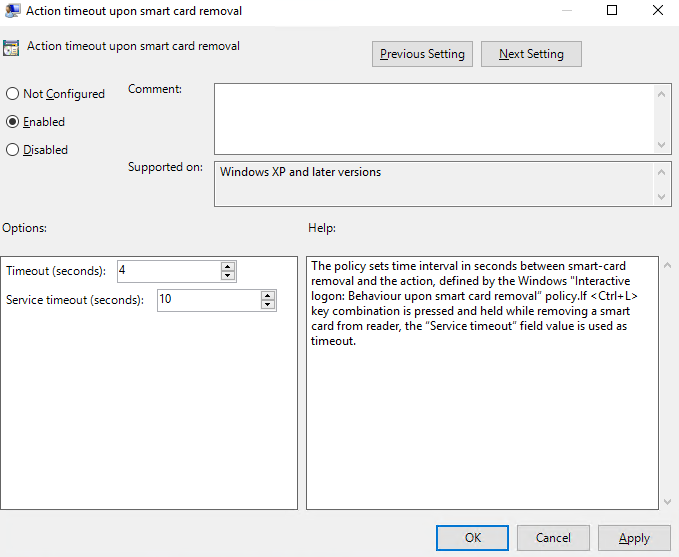
Action timeout upon smart card removal
The Windows Logon® policy determines the duration of the standard and service timeout following the removal of an authentication device. Use this policy to set the time period (in seconds) between the removal of a smart card and the performance of action together with the Windows policy − Interactive logon: Smart card enhanced removal behavior. Standard timeout option prevents automatic system lockout in case of accidental removal of an authentication device.
Service timeout option prevents automatic system lockout when you need to extract an authentication device for a reason (to train an additional authenticator, use another account and a different authenticator to access the system). If you want to activate service timeout, press and hold [Ctrl]+[L] before removing the device. If the policy is not set or is disabled, there will be no timeout before the automatic lockout of your workstation.
Authentication through OMNIKEY Provider
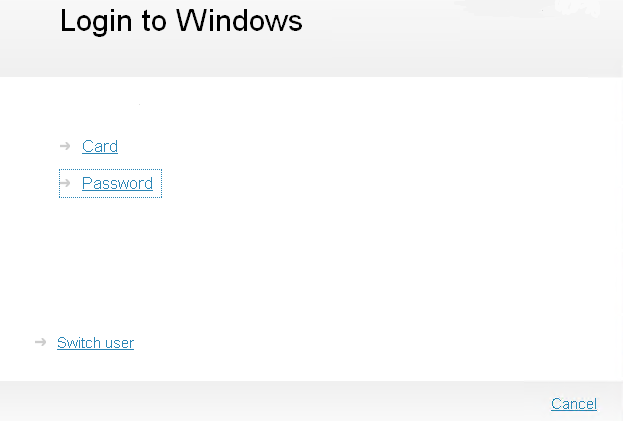
- When you first log in to the system or to the app via Axidian authentication, select the login method by clicking Switch authentication Method on the Windows login screen (on the Authentication screen if you use Enterprise SSO). Select Card (HID OMNIKEY) as a login method.
- Connect the HID OMNIKEY card reader and place a registered card on top of the device.
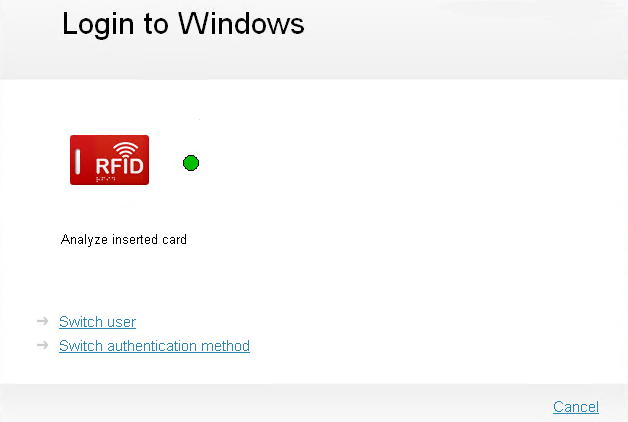
- The authentication is completed once the card data has been processed. If your login has been successful, the card authentication is saved as your preferred login method. Then, you are prompted to use it again during your next login to the system or app.