MFA Provider
Files for the MFA Provider installation are located at axidian\Axidian Providers\MFA Provider\.
- Server\<version number>\MFA Provider.msi: The installation package of MFA Provider on the Axidian server.
- Client\<version number>\MFA Provider.msi: The installation package of MFA Provider on client computers.
- \Misc: The folder contains policy templates.
About MFA Provider
Use MFA to set the authentication sequence for multi-factor authentication in the Windows Logon and ESSO Agent modules.
Install the provider
To install MFA Provider on the Axidian server and on your computer, run the MFA Provider.msi provider.
noteIf your infrastructure requires multiple Axidian Core servers, verify that you install MFA on all servers.
After the installation is complete, restart the system. If the installation wizard prompts you to restart the system, confirm this action.
To remove or restore the product, open the Control panel menu and use the standard procedure for the supported operating systems.
Configure authentication parameters
Before you proceed, add the Axidian policy templates to the administration template list. Policy template files are included into the installation package and are located at the Misc folder. The policy must be applied to all Axidian Core servers and all client machines.
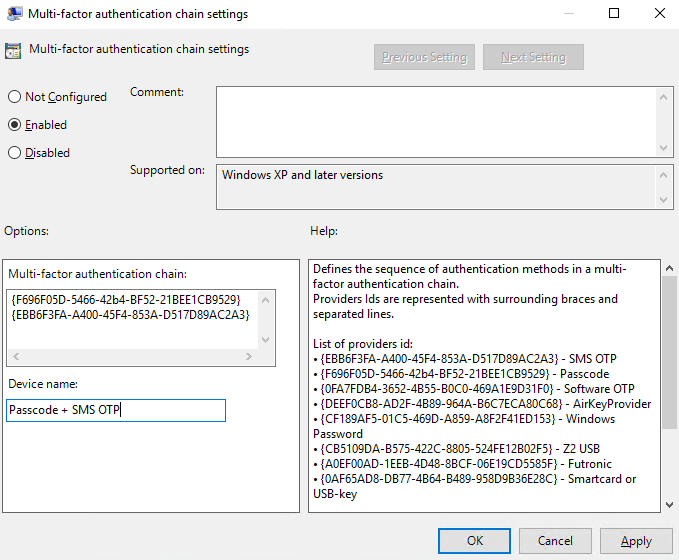
To open the Multi-factor Authentication Sequence Settings policy, navigate to Administrative templates\Axidian\Providers\MFA.
Set the policy value to Enabled.
In the Multi-factor Authentication Sequence parameter, add the IDs of authentication providers that will be used in the sequence.
noteYou can use a restricted provider in the MFA provider sequence.
Sequence example (Passcode + SMS OTP)
{F696F05D-5466-42b4-BF52-21BEE1CB9529}
{EBB6F3FA-A400-45F4-853A-D517D89AC2A3}
Supported providers
SMS OTP: {EBB6F3FA-A400-45F4-853A-D517D89AC2A3}
Passcode: {F696F05D-5466-42b4-BF52-21BEE1CB9529}
Software OTP: {0FA7FDB4-3652-4B55-B0C0-469A1E9D31F0}
Windows Password: {CF189AF5-01C5-469D-A859-A8F2F41ED153}
Z2 USB: {CB5109DA-B575-422C-8805-524FE12B02F5}
Futronic: {A0EF00AD-1EEB-4D48-8BCF-06E19CD5585F}
Smart card or USB key: {0AF65AD8-DB77-4B64-B489-958D9B36E28C}
HID OMNIKEY: {4B15AF52-A795-4CA6-B7CD-CDB8ABF2D2C2}
In the Device Name parameter, specify the name of the new sequence. The default value is MFA.
infoThis value is displayed as the user's MFA device name. You can also find it in the system events list.
MFA Authentication
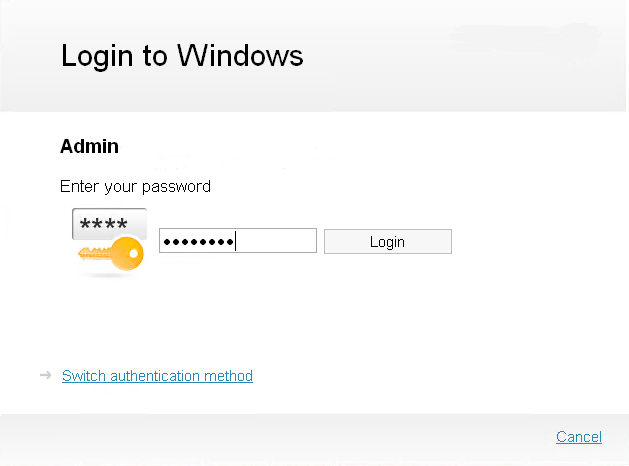
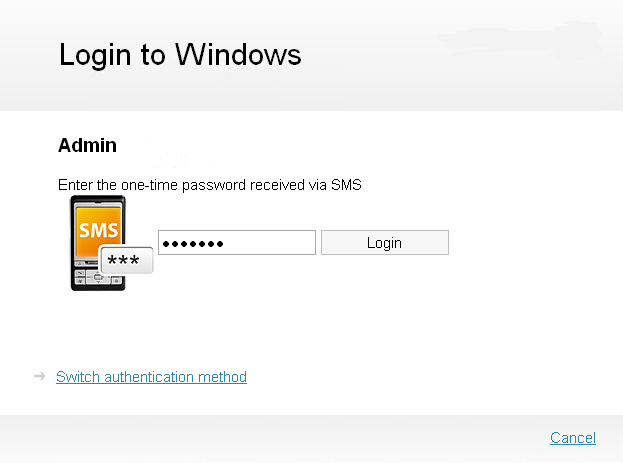
The Windows Logon component and the provider chain Passcode + SMS OTP are used in the following example.
- Select the Multi-factor Authentication provider.
- Insert details for the first provider in the chain.
- Insert details for the second provider in the chain.
- Log in to the system.