Futronic
Files for the IronLogic Z2USB Provider installation are located at axidian\Axidian Providers\Futronic Provider\<Version number>\.
- Futronic Provider х64.msi: The installation package of Futronic Provider x64 version.
- Futronic Provider х86.msi: The installation package of Futronic Provider x86 version.
- \Misc: The folder contains policy templates.
About Futronic Provider
Use Futronic Provider in combination with Windows Logon and Enterprise SSO modules. Futronic Provider is required for user authentication with Futronic FS80 biometric scanner. For more information about Futronic devices, visit the Futronic Technologies official website.
Install the provider
- To install Futronic Provider, run the Futronic Provider.msi installer.
- After the installation is complete, restart the system. If the installation wizard prompts you to restart the system, confirm this action.
- To remove or restore the product, open the Control panel menu and use the standard procedure for the supported operating systems.
Configure authentication parameters
Before you proceed, add the Axidian policy templates to the administration template list. Policy template files are included into the installation package and are located at the Misc folder.
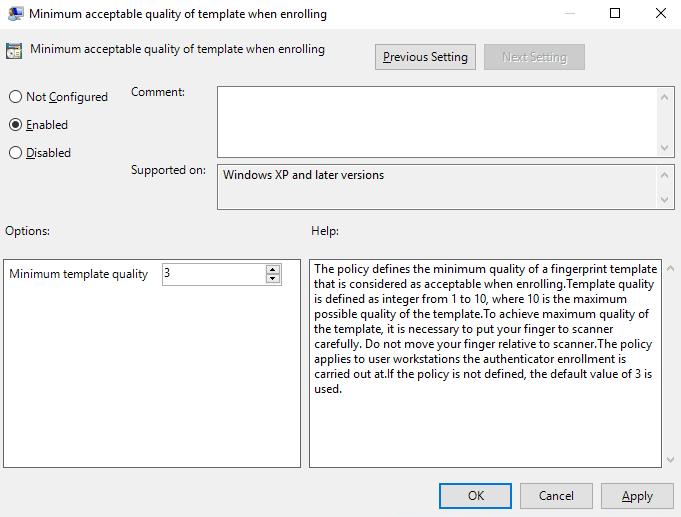
Minimum acceptable quality of template when enrolling
The Minimum acceptable quality of template when enrolling policy defines the minimum quality of a fingerprint template that is considered as acceptable when enrolling. Template quality is defined as an integer from 1 to 10, where 10 is the maximum possible quality of the template. To achieve maximum quality of the template, place your finger on a scanner carefully. Do not move your finger relative to a scanner. Define the policy at the system clients, where authenticator enrollment is carried out. In other words, these are user workstations with the client components of the system installed. If the policy is not defined, the default value 3 is used.
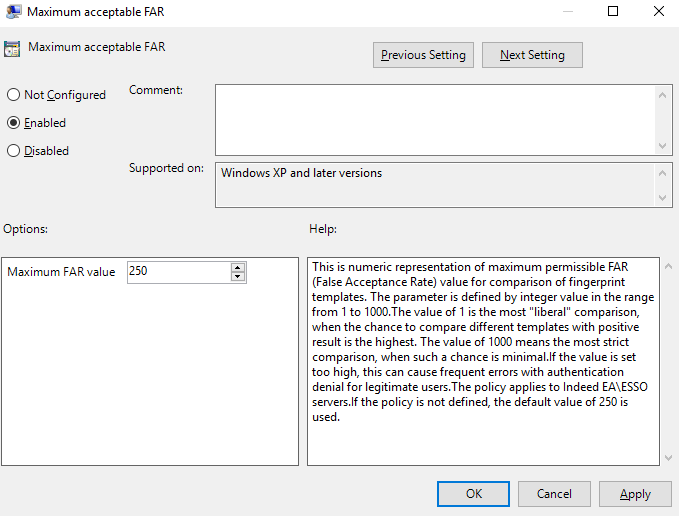
Maximum acceptable FAR
The Maximum acceptable FAR policy defines the maximum permissible value of FAR (False Acceptance Rate) when comparing the fingerprint templates. This is defined by an integer from 1 to 1000. The value 1 means that the chance to compare different templates with positive result is the highest. The value of 1000 is the most strict comparison, when such a chance is minimal. If the value is set too high, it can cause frequent errors with authentication denial for legitimate users. Define the policy for all Axidian servers. If the policy is not defined, the default value 250 is used.
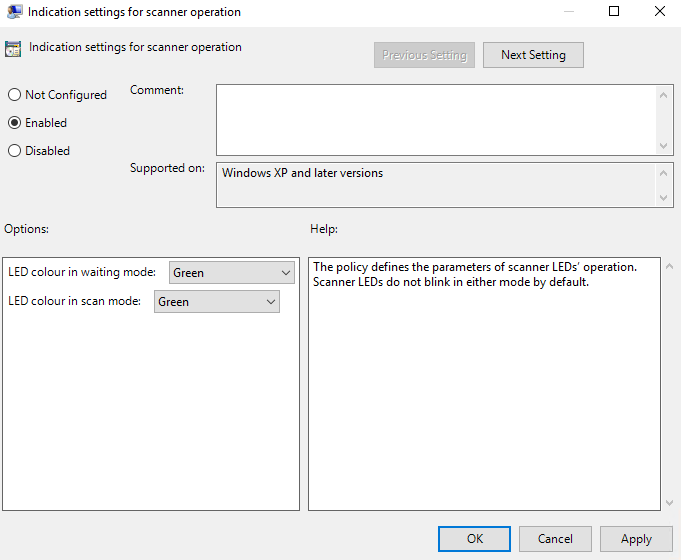
Indication settings for scanner operation
The policy defines the parameters of scanner LEDs operation. Scanner LEDs do not blink in either mode, by default.
Authentication through Futronic
When you first log in to the system or to the app via Axidian authentication, select the login method by clicking Switch authentication Method on the Windows login screen (on the Authentication screen if you use Enterprise SSO). Select Finger as a login method.
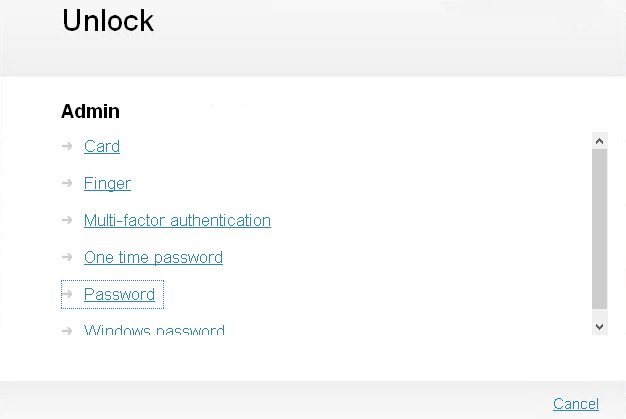
Connect the reader to a computer and put your finger on the reader.
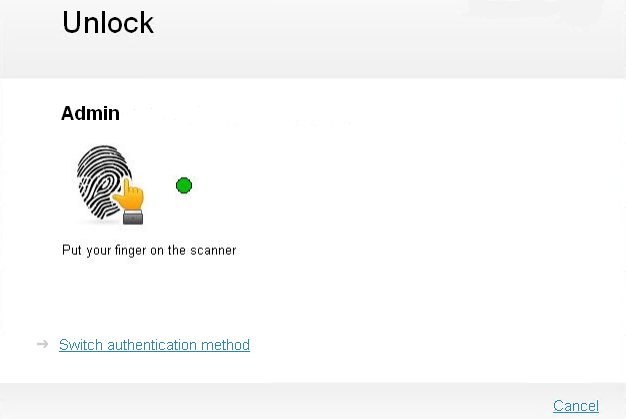
The authentication is completed once the card data has been processed. If your login has been successful, finger authentication is saved as your preferred login method. Then, you are prompted to use it again during your next login to the system or app.