Issue
You can get a ready-to-use card or issue a card yourself if you have an empty card. If you have a ready-to-use card, all information about this card is displayed when you log in to Self-Service.
Issue a card
The administrator defines the list of issuance options in policy settings. The following instruction describes how to issue a card with the maximum available options.
Connect a card to the workstation.
Click Issue card.
Select certificate templates.
Administrator settings
The user can select certificates if you enable the Select optional certificates when card is issued option in policy settings (Workflow→User permissions→Card issuing operations).
Depending on the administrator settings, the card is either initialized or not initialized when issued.
- Not initialized
- Initialized
- Enter User PIN.
- Enter Admin PIN.
Administrator settings
The Admin PIN field is displayed if the card was not added to Axidian CertiFlow and you enabled the Allow user to add cards when they are issued option in policy settings (Workflow→General).
infoIf you do not set Admin PIN and User PIN, Axidian CertiFlow uses the PIN values specified by the administrator in Card types.
- Click Issue.
- If your card stores third-party certificates, select the certificates to register them in Axidian CertiFlow.
Administrator settings
The user can select certificates if you enable the Search for certificates when card is issued or updated to track validity period and Allow user to select tracked certificates options in policy settings (Workflow→General).
Administrator settings
Enable the Initialize card option in policy settings (Issuance) and configure intialization settings in Issuance→Card initialization.
cautionIf the card is initialized when issued, all card contents is deleted.
- Enter Admin PIN. If you do not set Admin PIN, Axidian CertiFlow uses the PIN value specified by the administrator in Card types.
Administrator settings
The Admin PIN field is displayed if the card was not added to Axidian CertiFlow and you enabled the Allow user to add cards when they are issued option in policy settings (Workflow→General).
- Click Issue.
If a random PIN was set during the card issue, it is displayed on your screen. If necessary, save your PIN and email it to yourself or your manager.
Administrator settings
A random PIN is set if you enable the Set random user PIN option in policy settings (Issuance).
The PIN value can be sent by email if you configure email notifications.
Click Close.
After you issue a card, it is displayed in Your cards.
If you have not set the answers to secret questions, proceed to the secret questions settings.
Documents check
Card issue can be suspended if your company’s regulations require the documents check and approval before you obtain your certificates.
In the card issue window, you can see this message: Card issue pending. The card has Pending status. This means that your card issue request is awaiting approval.
You can send the documents in the following ways:
- Using Axidian CertiFlow if the administrator configured the internal electronic document management functionality.
- By any other means authorized in your company. For example, via email.
- Send documents using Axidian CertiFlow
- Other
If the administrator configured the internal electronic document management functionality, send your documents to the administrator in Self-Service.
The administrator defines the document approval settings. For more information, see Administrator guide.
Sign and upload the following documents to Axidian CertiFlow.
Certificate request
Submit a signed certificate request form for it to be approved in the certification authority (CA). The administrator can precheck the certificate request before it is sent to the CA.
- Upload the signed certificate request to Axidian CertiFlow:
- Print out the certificate request. Open the Contents tab in your card menu and click ! .
- Sign the certificate request and upload it to Axidian CertiFlow. How to sign and upload a document to Axidian CertiFlow
- Wait for the certificate request to be approved in the CA. On the Contents tab in your card menu you can check the certificate status – Pending.
- If the certificate request is approved in the CA, it gets the Approved status and is written on the card. Open the card menu and click Continue card issue.
If the request is rejected, revoke and clear the card or contact the administrator, then restart the card issue operation.
If the administrator configured user email notifications, you will receive an email with the approval status notification – Card issue approved or Card issue rejected.
If user notifications are not configured, wait for the Continue card issue option to appear in the card menu.
Certificate form
If your company’s e-signature verification certificate policy requires additional approval of the certificate form, the administrator must approve the document before writing the certificate to the card.
In this case, the CA approves the certificate automatically. On the Contents tab in the card menu, you can check the status of the certificate – Valid. This means that the certificate has been issued in the CA, but not yet written to the card.
- Upload the signed certificate form to Axidian CertiFlow:
- Print the certificate form. Open the Contents tab in the card menu, click ! next to the certificate template and select Certificate.
- Sign the certificate form and upload it to Axidian CertiFlow. How to sign and upload a document to Axidian CertiFlow
- Wait for the administrator to approve the document.
- If the administrator has approved the document, the certificate is written to the card. Open the card menu and click Continue card issue.
If the administrator has rejected a document, edit and sign the document again and upload it back to Axidian CertiFlow.
If the administrator configured user email notifications, you will receive an email with the approval status notification– Document approved.
If user notifications are not configured, wait for the Continue card issue option to appear in the card menu.
Certificate request and certificate form
To continue the card issue operation and write a certificate to the card:
- Submit a signed certificate request form and wait for the request to be approved in the CA.
- Submit a signed certificate form and wait for the administrator to approve the document.
Use the following procedure:
Upload the signed certificate request to Axidian CertiFlow:
- Print out the certificate request. Open the Contents tab in your card menu and click ! .
- Sign the certificate request and upload it to Axidian CertiFlow. How to sign and upload a document to Axidian CertiFlow
Wait for the certificate request to be approved in the CA.
If the certificate request is approved in the CA, the certificate status is Valid. This means that the certificate has been issued in the CA, but not yet written to the card. Upload the signed certificate form to Axidian CertiFlow for admininstrator's check:
- Print the certificate form. Open the Contents tab in the card menu, click ! next to the certificate template and select Certificate.
- Sign the certificate form and upload it to Axidian CertiFlow.
If the request is rejected in the CA, revoke and clear the card or contact the administrator, then restart the card issue operation.
If the administrator has approved the document, the certificate is written to the card. Open the card menu and click Continue card issue.
If the administrator has rejected a document, edit and sign the document again and upload it back to Axidian CertiFlow.
If the administrator configured user email notifications, you will receive an email with the approval status notification – Document approved, Card issue approved or Card issue rejected.
Provide documents to the administrator in accordance with your company’s e-signature verification certificate policy.
Use the following procedure:
- Provide the administrator with a signed certificate request form for it to be approved in the CA.
- Wait for the certificate request to be approved in the CA. On the Contents tab in your card menu you can check the certificate status – Pending.
- If the certificate request is approved in the CA, it gets the Approved status and is written on the card. Open the card menu and click Continue card issue.
If the request is rejected, revoke and clear the card or contact the administrator, then restart the card issue operation.
- If the certificate request is approved in the CA, it gets the Approved status and is written on the card. Open the card menu and click Continue card issue.
If the administrator configured user email notifications, you will receive an email with the approval status notification – Card issue approved or Card issue rejected.
If user notifications are not configured, wait for the Continue card issue option to appear in the card menu.
Issue virtual cards
You can issue the following types of virtual cards in Axidian CertiFlow:
- Registry
- TPM Virtual Smart Card (VSC)
- Windows Hello for Business
- AirСard
- Registry
- TPM Virtual Smart Card
- Windows Hello for Business
- AirCard
Administrator settings
To issue a Registry card:
- Click Issue card.
- Enter the card name.
- In the Card field, select the following:
- Registry - Machine: Registry, to issue a certificate in the local computer certificate store.
- Registry - User: Registry, to issue the certificate in the current user’s certificate store.
- Click Issue. Axidian CertiFlow sends the certificate request to the CA.
- Create a password for the private key container in the RSA private key creation window.
This is required if the administrator has enabled the Prompt the user during enrollment and require user input when the private key is used option on the Request Handling tab in the Microsoft CA Certificate Template settings.- Click Select security level and enter a password that meets your company’s security requirements.
- Click Finish and ОК.
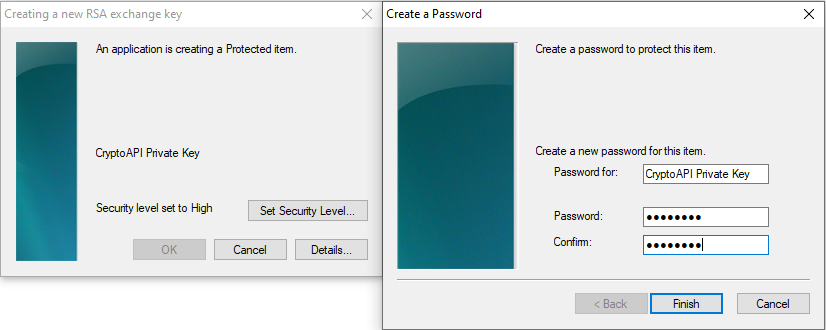
It is not possible to reset the key container password. If you do not remember the key container password, issue the certificate again.
Administrator settings
- Open the Axidian CertiFlow Configuration Wizard, go to Common features and enable the Create TPM Virtual Smart Card (VSC) option.
- Add the Tpm.xml card type to Axidian CertiFlow.
To be able to unlock the TPM card, when you add a card type in Axidian CertiFlow, the administrator PIN must change to random or any non-random Triple DES.
- Install the Trusted Platform Module (2.0) on user workstations.
- Install the Certiflow.TPM.Middleware component on user workstations.
- Only RSA certificates are supported
- Card initialization is not supported
To issue a TPM VSC card:
- Click Issue card.
- Enter the card name.
- Select Create a TPM or select a card created before.
- Click Issue.
Axidian CertiFlow creates a virtual card. The TPM virtual card can be used as a hardware card on user workstations. For example, for domain authentication.
Administrator settings
- Deploy the Windows Hello for Business infrastructure according to Microsoft instructions.
- Open the Axidian CertiFlow Configuration Wizard, go to Common features and enable the Create Windows Hello for Business.
- Add the Whfb.xml card type to Axidian CertiFlow.
- Install the Trusted Platform Module (2.0) on user workstations.
- Install the AxidianCertiflow.WHfB.Middleware component on user workstations.
- Only RSA 2048 certificates are supported
- Maximum number of WHfB cards on a Windows 10 computer is 10
- Only one WHfB card can be created for one user on one workstation
- Card initialization is not supported
To issue a Windows Hello for Business card:
- Click Issue card.
- Enter the card name.
- Click Create WHfB.
- Click Issue.
- Configure card PIN settings:
- Click Set up PIN.
- Enter the credentials for the main authentication and user authentication (using the Axidian CertiFlow MFA adapter) and click Submit.
- Enter PIN and click OK.
Axidian CertiFlow creates a virtual card. The Windows Hello for Business virtual card can be used as a hardware card on user workstations. For example, for domain authentication.
Administrator settings
- Open the Configuration section, navigate to the policy settings and go to Workflow. enable the Issue AirCard option in User permissions→ General.
- Add the AirCard.xml card type to Axidian CertiFlow.
- Install the AxidianCertiflow.AirCard.Middleware and AxidianCertiflow.AirCard.Runtime components on user workstations.
- Configure the Axidian AirCard Enterprise server network availability for user workstations.
You can issue only RSA certificates on AirCards.
After you install the Axidian AirCard Runtime, an AirCard indicator appears in Windows Taskbar.
To issue an AirCard:
- Click Issue AirCard.
- Enter the card name.
- Select Create a new AirCard or select a card created before.
- Click Issue.
After AirCard is issued, it binds with a workstation automatically. The list of allowed computers is displayed in the card menu.
Connect AirCard to a workstation
You can connect an AirCard to a workstation:
- Automatically in Axidian CertiFlow
After an AirCard is issued, it automatically connects to the authorized computers if they belong to the company’s corporate network. - Manually in the Axidian AirCard Enterprise control panel
Use this method if you cannot connect the card automatically (for example, if the computer is outside the company's network). In this case, only the administrator can issue an AirCard.
How to connect an AirCard manually
Add an AirCard manually in Axidian AirCard Enterprise control panel and connect it to the workstation:
- Open the Axidian AirCard Enterprise control panel.
- Click
 and
and  .
. - In the Code field, enter the code sent by the administrator. The code is valid for an hour and can only be used once. The Axidian AirCard Enterprise server address is set automatically.
- Click Add.
You can view AirCards connected to your workstation in the Active smart cards section of the Axidian AirCard Enterprise control panel. Each card has an ID (serial number) which is displayed in the Axidian CertiFlow services.
You can see the connected cards indicator in Windows taskbar. If no cards are connected to the workstation, or there is no connection to the Axidian AirCard Enterprise server, the indicator is grey, if at least one card is connected, the indicator is blue.