Disable and enable
You can disable a user's card (turn off) for a certain period of time and then enable it again (turn on). To disable or enable a card, you do not need to connect it to a workstation.
Disable a card
To disable a card, click Temporarily disable card in the card menu and confirm the operation. The card status changes from Issued to Disabled.
- Navigate to the user's profile.
- Select the required card and then select Disable in the card menu.
The card status changes from Issued to Disabled. If a user tries to authenticate with a disabled card, they receive a message stating that the certificates have been revoked.
Certificate suspension
You can configure Axidian CertiFlow to temporarily suspend the certificates while a card is disabled:
- Open the Configuration section, navigate to the policy settings and go to PKI Settings.
- Select the required CA and go to Templates.
- Click
 next to the required certificate template.
 - In the template parameters, enable the Revoke certificate at card revoking/disabling option and click Save.
The certificates are revoked with Certificate on hold status. Enable the card to resume the certificate validity.
Disable a card without logging into the OS
In an emergency, a user can disable their card without logging into the OS.
The user can only disable a card if the workstation is connected to the Axidian CertiFlow server and the user has configured answers to the security questions.
You can block specific user groups from disabling cards. For more information, see Online card unlock settings.
To disable a user's card:
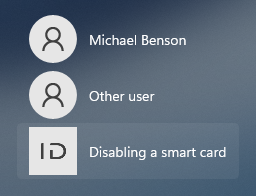
On the Windows lock screen, select Disabling a smart card.
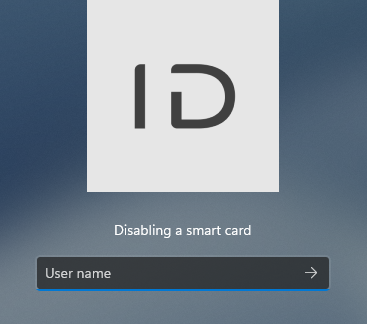
Enter the username (Logon Name or UPN).
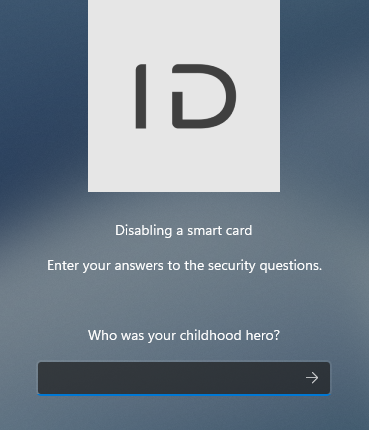
Enter the answers to the security questions.
Select the card from the list of issued cards and click
 .
.
Enable a card
- Navigate to the user's profile.
- Select the required card and then select Enable in the card menu.
Allow users disable and enable cards in the Self-Service
You can allow or prevent users from disabling and enabling their cards in the Self-Service. To configure the permission:
- Open the Configuration section, navigate to the policy settings and go to Workflow → User permissions → Issued card operations.
- Activate the Disable and Enable options.