Assign tasks manually
You can manage cards and certificates remotely using agent tasks.
Task execution workflow
- Any active agent can execute a task that does not require user interaction.
- Only the agent bound to the card can execute a task that requires user interaction, such as entering answers to secret questions for unlocking the card.
Task execution process
Initial сonnection: When a card connects to a workstation, the agent requests its assigned tasks from the Axidian CertiFlow server.
Established connection: For a card that is already connected, the agent requests new tasks from the Axidian CertiFlow server every 30 seconds by default.
An agent can execute operations that require user interaction only within an active user session in the operating system.
If card-to-agent binding is not configured and user session card binding control is disabled, an agent can execute user-interactive tasks in any user session on the workstation.
Assign a task
- Find the card:
- In the Cards section
- In the user's profile
- Open the card menu and select a task.
The assigned task appears in the Assigned tasks section of the card menu.
Cancel a task if it is pending for too long or is taking excessive time to complete. Click  next to the task.
Task status
Idle – The task is queued and will execute when its conditions are met (for example, the target workstation with the agent is powered on, the required card is connected, or a preceding task is complete).
Running (blue) – The agent has started executing the task.
Running (orange) – The task exceeds 10 minutes.
Completed – The task is executed.
Error – An error occurred during task execution.
Reset user PIN
You can reset a user PIN if it is forgotten or blocked. To reset the PIN, the user must answer their secret questions correctly. Make sure that the user has configured secret questions and answers in the Self-Service.
To unlock a card through an agent:
- Select Reset PIN in the card menu.
- Enable the Reset user PIN on agent option.
- (Optional) Enter a comment. The comment logs in the Axidian CertiFlow Event Log.
- Click Reset.
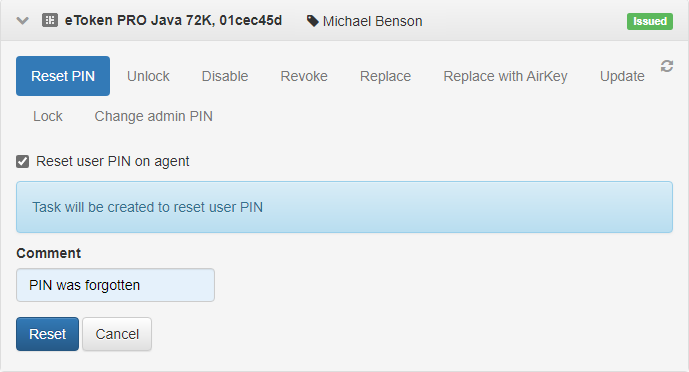
When the task runs, the agent launches the unlock utility on the user workstation. The user must answer the secret questions correctly, enter a new PIN and click Reset.
If the user selects Cancel, the task status reverts to Pending. The Axidian CertiFlow Event Log records that the user cancelled the task. The prompt to answer secret questions reappears in the user's session after 60 seconds.
Change administrator PIN
- Select Change admin PIN in the card menu.
- Fill in the New admin PIN and Confirm PIN fields.
- (Optional) Enter a comment. The comment logs in the Axidian CertiFlow Event Log.
- Click Change.
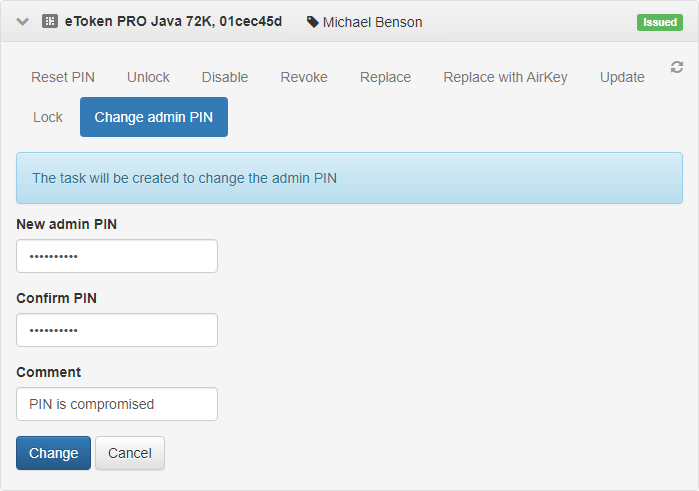
The administrator PIN changes automatically when the card is connected to a workstation where agent is installed.
If you have specified a message for the Change card admin PIN operation in the card usage policy, the user receives a notification when the task is completed.
Revoke a card
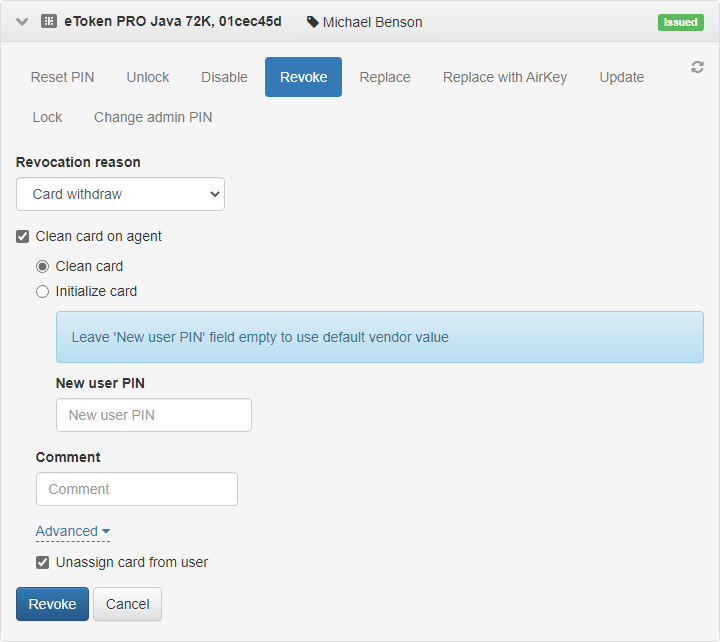
- Select Revoke in the card menu.
- Specify the revocation reason.
- Enable the Clean card on agent option.
- Select a data removal level:
- Clean card: Deletes all certificates written to the card by Axidian CertiFlow. Pre-existing certificates and keys stored on the card before enrollment are not removed.
- Initialize card: Removes all content, deletes the password policy (if configured), and changes the card's name.
Enter the new user PIN to be set on the card after it is revoked. If you do not set a PIN, Axidian CertiFlow applies the default PIN from the Card Types configuration.
When to set a user PINDefine a user PIN if the default user PIN in the card type file does not meet the security requirements configured for this card type after the card was initialized when issued.
(Optional) Enter a comment. The comment logs in the Axidian CertiFlow Event Log.
To unassign the card from the user, click Advanced and enable the Unassign card from user option. If this option is disabled, the card remains assigned to the user.
Click Revoke.
Update a card
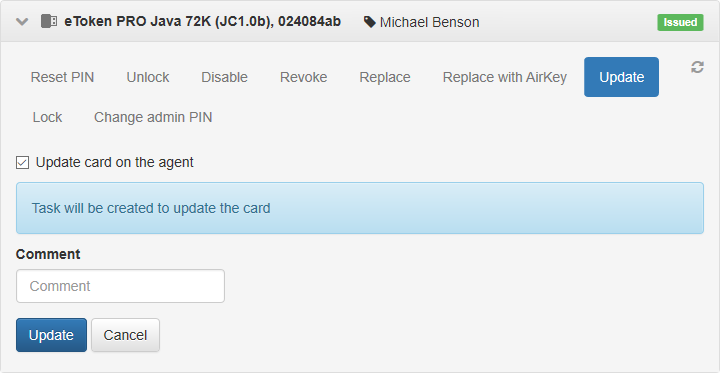
- Select Update in the card menu.
- Enable the Update card on agent option.
- (Optional) Enter a comment. The comment logs in the Axidian CertiFlow Event Log.
- Click Update.
Configure third-party certificates tracking
If a card contains third-party certificates, Axidian CertiFlow can detect them and record information about these certificates in the database. During a card update operation, the user can select which certificates should be tracked.
To configure third-party certificates tracking:
- Open the Configuration section and navigate to the policy settings.
- Go to Workflow → General.
- Enable the following options:
- Search for certificates when card is issued or updated to track validity period
- Allow user to select tracked certificates
When the user connects the card to the workstation, the update operation starts.
The update operation may be paused if your company's policy requires document verification for digital certificate renewals. In this case, the card update window displays the following message: Card update pending approval. The card's status changes to Pending.
For more information, see Card update documents check.
Cancel a card update operation
You can cancel a card update operation through the agent if you enabled the Cancel card update option in policy settings (Workflow → Administrator Permissions).
To cancel a card update operation:
- Select Cancel update in the card menu.
- Enter the user PIN.
- Enable the Cancel update on agent option.
- Click Cancel.
Lock a card
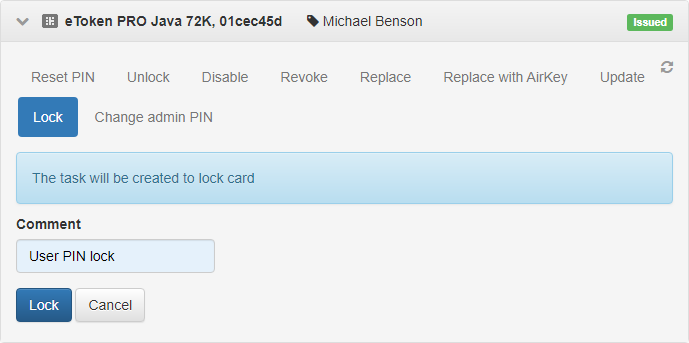
Locking a card locks its user PIN.
- Select Lock in the card menu.
- (Optional) Enter a comment. The comment logs in the Axidian CertiFlow Event Log.
- Click Lock.
Initialize a card
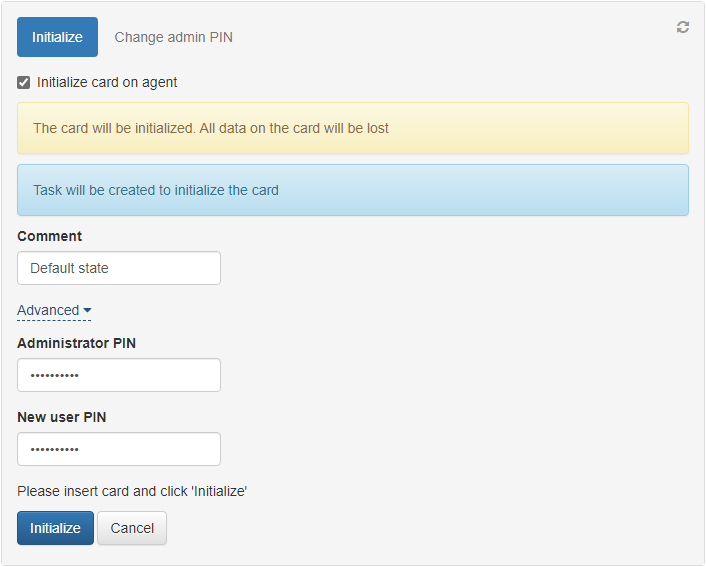
Agent can initialize cards in Clean status.
- Select Initialize in the card menu.
- Enable the Initialize card on agent option:
- If the administrator PIN set on the card matches the one stored in the Axidian CertiFlow database, click Initialize. The administrator PIN on the card and in the database remain unchanged, and the user PIN is reset to the value specified in the card type file.
- If the administrator PIN on the card does not match the one stored in the sAxidian CertiFlow database, enter the correct PIN in the Advanced section. Optionally, set a New user PIN and then click Initialize. The administrator PIN in the databse is updated to the value you provided.
- (Optional) Enter a comment. The comment logs in the Axidian CertiFlow Event Log.
Bulk tasks
Bulk tasks are operations you can assign to multiple cards at once. Axidian CertiFlow assigns these tasks to selected cards, and the agent executes the tasks when users connect the cards to their workstations.
Task list
- Lock user PIN: Locks the user PIN. Assign this task to cards in Issued or Pending status.
- Change user PIN: Notifies the user that they must change their PIN. Assign this task to cards with the Issued or Pending status.
- Change admin PIN: Changes the administrator PIN. You can assign this task to card in any status.
- Update card: Updates the card contents. Assign this task to card in Issued status.
- Clean card: Clears or initializes the card. You can also unassign the card from the user. Assign this task to cards in Revoked status.
Create a bulk task
- In the Management Console, go to the Cards section.
- Select the target cards and click Create agent tasks.
- Select a task, set the required parameters, and click Create.
The task appears in the selected cards menus. Axidian CertiFlow records the task execution results for each agent.
Send a user message
The agent can notify users when it completes the following operations:
- Locking a card
- Changing the administrator PIN
- Cleaning a card
Axidian CertiFlow does not send the notifications by default. To enable a notification, enter the message text.