Replace
Axidian CertiFlow allows you to replace a user's card. There are two replacement types:
- Temporary
If an employee forgets their card at home, you can issue a new card with a limited validity period. The primary card is disabled, and a temporary card is issued. When the temporary card expires, it is revoked automatically, and the primary card resumes operation. - Permanent
If a card is broken, lost, or compromised, you can replace it with a new one. The old card is revoked, and the new one becomes the primary card.
Certificates workflow
The certificates status during a card replacement depends on the CA certificate templates settings.
How to configure the CA certificate template parameters
- Open the Configuration section and navigate to policy settings.
- In the PKI Settings section, select the required CA and open Templates.
- Click
 next to the required certificate template.
Key pair backup
Whether a key pair backup is stored in Axidian CertiFlow controls the certificate status during a card replacement.
- Key pair backup exists: When you issue a new card (temporary or permanent), the original certificate is transferred to it, preserving the key pair.
- No key pair backup: When you issue a new card, a new certificate with a new key pair is generated.
To save a key pair backup and write it to a new card during replacement, enable the Backup key and Copy backup key to temporary card options in the CA certificate template parameters.
Revoke a certificate when you revoke or disable a card
The certificates status during card replacement also depends on the Revoke certificate at card revoking/disabling option configured in the CA certificate template parameters:
- Option enabled: Certificates are suspended in the CA when the card is revoked or disabled.
- Option disabled: Certificates remain valid.
If a key pair backup is saved in Axidian CertiFlow, the certificate remains valid regardless of the Revoke certificate at card revoking/disabling setting. The certificate is transferred to the new card.
Temporary replacement
Here is how a temporary replacement works:
The primary card is disabled. A temporary card is issued.
Certificate status With key pair backup The certificate remains valid and is transferred to the temporary card, provided the Copy backup key to temporary card option is enabled in the certificate template. Without key pair backup If the Revoke certificate at card revoking/disabling option is enabled in the certificate template, the certificate on the primary card is suspended in the CA.
A new certificate with a new key pair is written to the temporary card.The temporary card expires or the employee regains access to their primary card. After the Card Monitor service runs, the temporary card is revoked, and the primary card is enabled.
Certificate status With key pair backup The certificate remains valid. Without key pair backup The certificate on the temporary card is revoked. The certificate on the primary card is valid again.
How to start the Card Monitor service
The Card Monitor service runs automatically on a daily schedule configured in the Configuration Wizard (Card Monitor).
To start Card Monitor manually:
- Windows OS
Open PowerShell as an administrator on the Axidian CertiFlow server and run:C:\Program Files\Axidian CertiFlow\CardMonitor\Certiflow.CardMonitor.exe - Linux OS
Open a terminal as an administrator on the Axidian CertiFlow server and run:cd /opt/axidian/certiflow/cardmonitor && ./Certiflow.CardMonitor
Permanent replacement
The old card is revoked, and a new card is issued to replace it.
| Certificate dtatus | |
|---|---|
| With key pair backup | The certificate remains valid and is transferred to the new card. |
| Without key pair backup | If the Revoke certificate at card revoking/disabling option is enabled in the certificate template, the certificate on the old card is revoked in the CA. A new certificate with a new key pair is written to the new card. |
The card PIN is not transferred to the new card. The PIN is set according to the card usage policy settings.
Replace a card in the user profile
- In the Management Console side panel, go to the Users section and find the required user.
- Open the user's profile, select the required card and click Replace in the card menu.
- Select the replacement type:
- Temporary. Specify the expiration date for the temporary card.
- Permanent. Specify the replacement reason.
- Enter a name of the temporary card.
- Connect the new card to the workstation.
- In the Advanced section, enter the Administrator PIN if you have not previously added the new card to Axidian CertiFlow.
- Click Replace.
If the card usage policy is configured to initialize a card when it is replaced, the new card is initialized. This operation erases all existing data on the card.
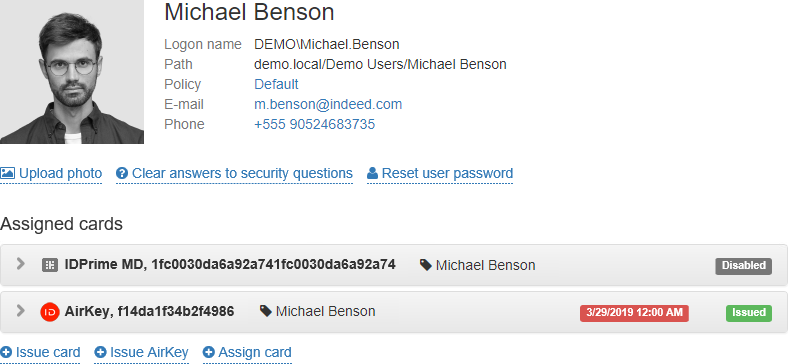
During a temporary replacement, the user profile displays two card: the primary card is disabled, and the new card is issued for a limited period.
Replace with AirCard
If Axidian CertiFlow is integrated with Axidian AirCard Enterprise, you can replace a card with an AirCard virtual smart card.
To replace a card with an AirCard, select Replace with AirCard in the card menu.