Issue
When you issue a card, it is personalized for the user: according to policy settings, the card is initialized, key pairs are generated, certificates are issued, and data is written to the card's memory.
The certificate enrollment process includes the following steps:
- The user creates a certificate request based on a specified template and generates a key pair (public and private) on the card using a Cryptographic Service Provider (CSP).
- The user forms a certificate request, which includes the public key.
- The user signs the request with the private key.
- A Certification Authority (CA) operator signs the request using the key of a service account with the necessary permissions, owned by the Axidian CertiFlow server.
- The request is sent to the CA.
- The CA approves or rejects the request. If the request is approved, the issued certificate is written to the card using the Cryptographic Service Provider.
Issue a card
To issue a card for a user:
In the Management Console side panel, go to the Users section and find the required user.
Open the user's profile and click Issue card.
Select the templates for optional certificates.
Connect the card to the workstation and configure the following settings:
Initialize card
The Initialize card option allows you to enable or disable initialization for a specific card.
If the card is initialized when issued, all card contents is deleted.
You can configure the initialization parameters in policy settings (Issuance).Label
The card name is set automatically if the Generate card name automatically option is enabled in policy settings (Issuance).
Comment
Enter a comment if the Require a comment to the card option is enabled in policy settings (Issuance).
Tags
Add tags if you have created them in Configuration → Tags.
Adding tags is mandatory if the Require tags to the card option is enabled in policy settings (Issuance).The Advanced section is displayed if you have not added the card to Axidian CertiFlow. Enter the PIN according to the initialization settings:
- Card is initialized
- Card is not initialized
The card is initialized if you have enabled the Initialize card option (Step 5) and configured initialization parameters in the policy settings.
- Enter the Administrator PIN. This field is displayed if you have not added the card to Axidian CertiFlow and the Add card automatically option is set in policy settings (Workflow).info
If you leave the Administrator PIN field empty, the default value specified in Card Types is used.
- If you issue an eToken card with built-in formatting protection, specify the initialization key.
- Click Issue.
Enter the User PIN.
Enter the Administrator PIN. This field is displayed if you have not added the card to Axidian CertiFlow and the Add card automatically option is set in policy settings (Workflow).
infoIf you leave the User PIN and Administrator PIN fields empty, the default values specified in Card Types are used.
Click Issue.
If a card contains third-party certificates, Axidian CertiFlow can detect them and record information about these certificates in the database. Select the certificates and click OK.
The certificates window is displayed if you have enabled the Search for certificates when card is issued or updated to track validity period option in policy settings (Workflow → General).
Axidian CertiFlow displays the user PIN after you issue a card if you have enabled the Set random user PIN option in policy settings (Issuance).
How to send the PIN to the user
To send the PIN to the user's email, configure email notifications in policy settings (Notifications → User notifications)
You can also print the PIN and send it in an envelope. Click
 next to the User PIN field. Axidian CertiFlow saves the PIN to the PinEnvelope.pdf file.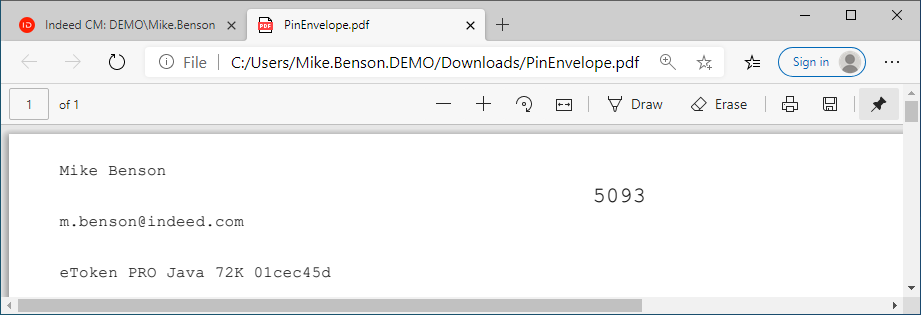
You can define the print settings in the C:\inetpub\wwwroot\certiflow\mc\wwwroot\content\pinenvelope.xsl template.
By default, the file includes user information (name and email) and card information (type, serial number, and user PIN). To modify the print template, edit the pinenvelope.xsl file.
Click Close after the card issue operation completes.
After you issue the card, the user's profile displays the card details in the Assigned cards section.
Documents check
A card issue operation can be suspended if your company’s regulations require the documents to be verified and approved in the Certification Authority (CA) before you obtain your certificates.
Configure the following settings in Axidian CertiFlow to verify the certificate request in the CA:
- Open the Configuration section and navigate to the policy settings.
- Go to PKI settings, select the required CA and open the Templates section.
- Clear the Accept certificate request automatically option.
In the card issue window, you can see this message: Card issue pending. The card has Pending status. This means that your card issue request is awaiting approval.
If the certificate request is approved in the CA, it gets the Approved status and is written on the card. Open the card menu and click Continue card issue.
If the request is rejected, revoke and clear the card, then restart the card issue operation.
If you have configured email notifications, you will receive an email with the approval status notification – Card issue approved or Card issue rejected. If notifications are not configured, wait for the Continue card issue option to appear in the card menu.
If several certificates are written to a card at once, the card can be issued only after both certificate requests are approved by the CA.
If one of the certificates was approved automatically and has a Valid status, it is written to the card along with the second certificate.