Unlock
The card locks if the user exceeded the number of attempts to enter the card PIN. You can define the maximum number of allowed PIN entry attempts in policy settings (Issuance → Card initialization).
There are two modes to unlock a user's card: online and offline.
Online mode
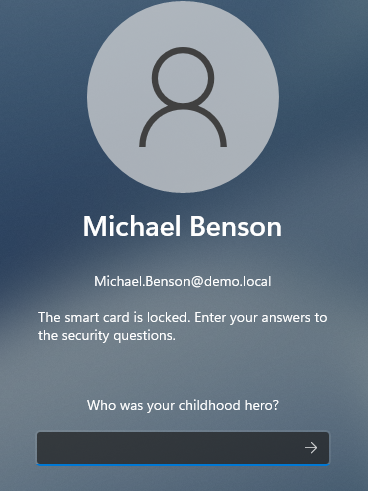
The user can unlock a card in the online mode on the Windows OS lock screen. The user answers security questions, sets and confirms a new PIN, and the card unlocks.
Online unlock requirements:
- The user's workstation is connected to the Axidian CertiFlow server
- The user has set answers to security questions in the Self-Service
If the user has not set answers security questions, online card unlock is not available. Use the offline mode to unlock the card.
The instruction below describes the online card unlock unlock on the Windows 11 lock screen.
Enter the answers to the security questions and click
 .
.
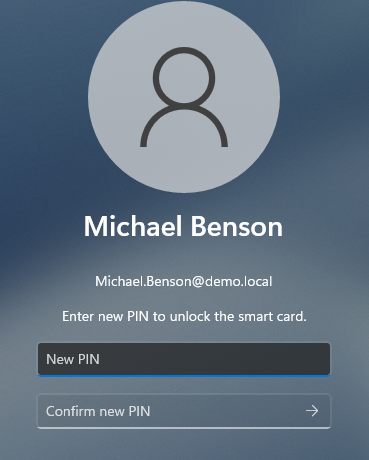
Enter the new PIN and confirm it.
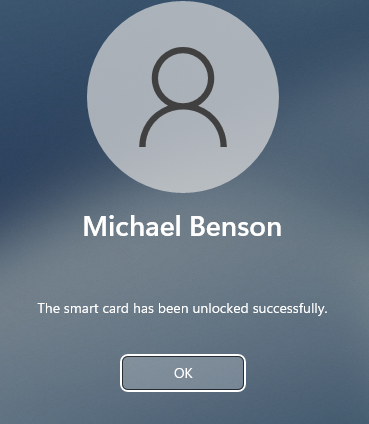
Once the card is unlocked, you can see the confirmation message. Click OK.
Offline mode
You can unlock a card in the offline mode on the Windows lock screen or in a Windows session.
- Lock screen
- Session
The Windows lock screen does not support card unlock in a Remote Desktop connection.
Offline unlock uses a challenge-response authentication mechanism.
Unlock process
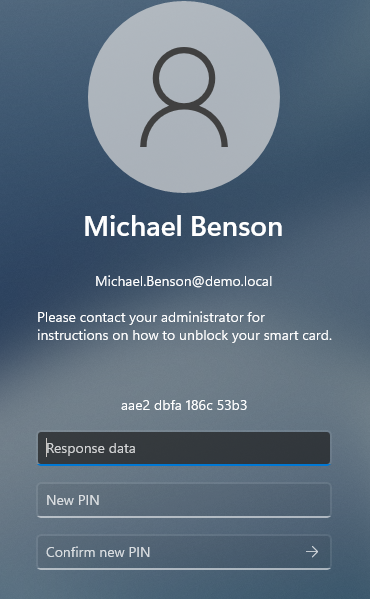
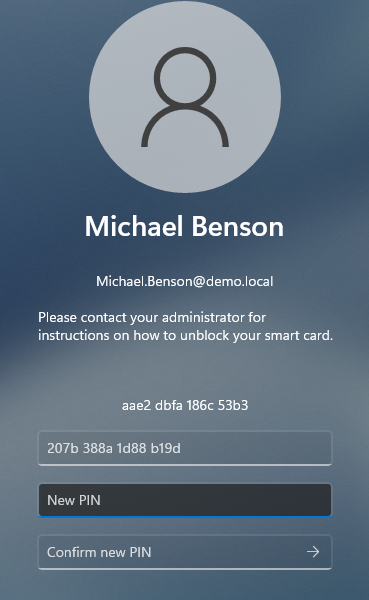
After the user exceeded the maximum number of allowed PIN entry attempts, Axidian CertiFlow locks the card and displays a message with a unique 16-character challenge code.
The user contacts an operator (for example, by phone), answers the security questions, and provides the challenge code.
Offline card unlock screen in Windows 11
The operator opens the user's card menu in Axidian CertiFlow and selects Unlock in the card operations list.
Before generating the response code for card unlock, the operator asks the security questions.
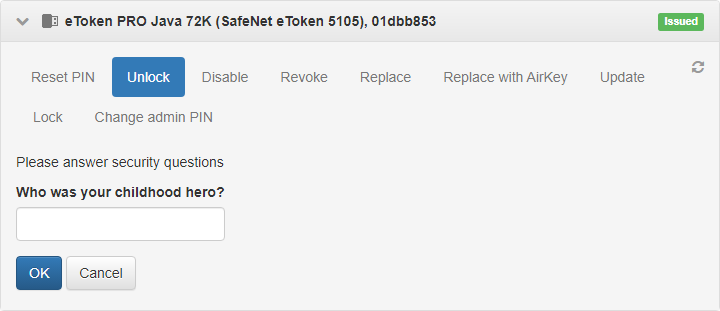
The operator enters the user's answers. If the user's answers are correct, the operator enters the challenge code provided by the user. Axidian CertiFlow generates a response code.
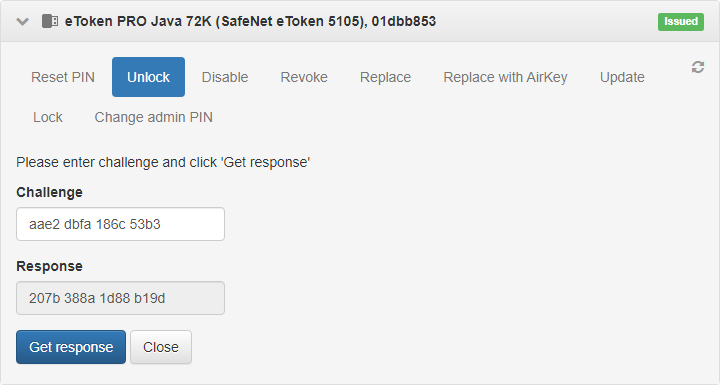
The operator sends the response code to the user.
The user enters the response code on the lock screen and sets a new card PIN.
Use the Axidian CertiFlow Unlock tool to unlock a card that is not used for workstation logon.
- Connect the card to the workstation and run the Axidian CertiFlow Unlock tool.
- Select the card from the list.
- The tool displays the card unlock challenge code in the Challenge data field. Send this code to the Axidian CertiFlow operator. The operator will ask the security questions to verify your identity, and will then give you a response code.
- In the tool, enter the response code in the Response data field, set and confirm a new PIN, and select Unlock.
The tool unlocks the card and applies the new PIN.
You can turn off the offline card unlock feature:
- Open the Configuration section, navigate to the policy settings and go to Workflow → Administrator permissions.
- Clear the Unblock card offline option.
The Validate answers to security questions option in Workflow determines whether Axidian CertiFlow checks the answers to the security questions during the offline unlock process.