Windows Logon
Description
Windows® Logon features
With Windows® Logon you can:
- Log in to the system with your account password.
- Log in to the system with the Axidian authentication technology.
- Access your remote desktop with the Axidian authentication technology.
- Log in to the system with cached authenticator without connection to Axidian Core Server.
To provide for user data security when users are not at workplaces, Windows® Logon supports both manual and automatic locking of workstation. The automatic locking is triggered when authentication device is removed or when screen saver becomes active. To unlock the workstation, it is always necessary to confirm the user identity with an authenticator, regardless of the locking method.
Advanced features
Use Windows® Logon to take advantage of the following features:
- Registration of authenticators by users and authenticator management using the Axidian Access – Authenticator management application.
- The Axidian Access Paste function, that pastes the user password in hidden form into required field upon pressing the preset hotkey combination.
Supported authentication technologies
Windows® Logon supports more than 20 modern authentication technologies, such as two-factor authentication, biometric authentication, certificates, proximity cards, one-time passwords, SMS technologies. You can define the most suitable authentication technology for each category of Windows® Logon users. Users can also use several technologies:
- Authentication technology, adapted for remote use.
- Combination of authentication technologies (multi-factor authentication).
Operation of Windows® Logon
This section contains teh description of the main Windows® Logon operation scenarios:
- Initial registration of the authenticator.
- Access to your system with an authenticator.
- User authenticator caching.
- Users changing passwords.
Installation
- Run the WindowsLogon.msi installer to install the Windows® Logon component.
- Follow the Installation wizard instructions.
- After the installation is complete, restart the system. Click Yes to restart the system immediately or No, if you plan to do this later manually.
Files for the Windows Logon installation are located at \Windows Logon\<version number>\.
- WindowsLogon.en-us.msi: Installation package for Windows Logon on 32 bit OS.
- WindowsLogon.x64.en-us.msi: Installation package for Windows Logon on 64 bit OS.
To deploy Windows® Logon at user workstations in automatic mode, you can use the group policy mechanism (Microsoft Group Policy). Otherwise, you can use any tool that allows batch copying and installation of the .msi packages to user workstations (such as Microsoft System Center Configuration Manager).
Update and removal of Windows® Logon
To remove or restore Windows® Logon, use the standard procedure for the supported operating systems and tools such as Control panel menu.
To remove Windows® Logon, you need local Administrator privileges. After you remove the Windows® Logon package, restart the system.
You do not have to remove the current version of the software to update it. During the update, the installed components are replaced by newer ones.
To update Windows® Logon at user workstations in automatic mode, use the group policy mechanism (Microsoft Group Policy). Also, you can use the deployed Microsoft System Center Configuration Manager.
Configuration
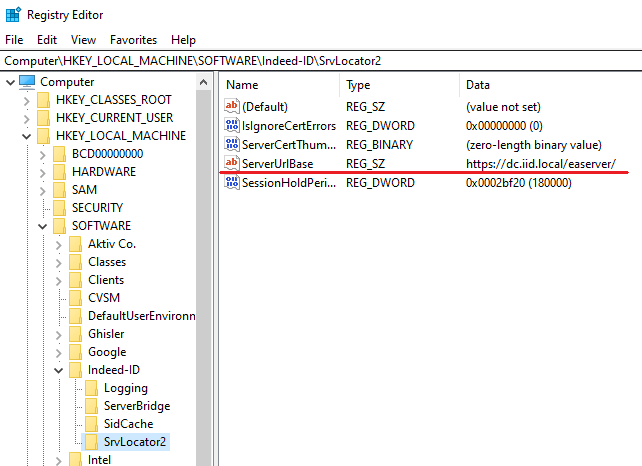
Configuration through Windows Registry Editor
- Open Windows Registry Editor (regedit).
- Go to HKEY_LOCAL_MACHINE\SOFTWARE\Axidian-ID\SrvLocator2.
- Change the string parameter
ServerUrlBaseand set the URL for Axidian Access Core Server, such as http(s)://dc.axidian-id.local/am/core/.
Configuration through Windows Group Policies
Group Policy Templates are located at axidian\Misc\GroupPolicyTemplates.
Add the AxidianID.ServerUrl.admx to the workstation with the installed Windows Logon module.
- Open gpedit.msc.
- Go to Computer Configuration - Administrative templates - Axidian ID - Client Connection - Server connection settings.
- Enable the policy.
- In AM Server URL address, set the URL for Axidian Access Core Server, such as http(s)://dc.axidian-id.local/am/core/.
Using Windows® Logon
Before you proceed, install the following items at your workstation to provide access to the system using the Axidian Access authentication technology:
- Windows® Logon module that provides access to the system using an authenticator.
- Axidian Access provider that corresponds to the selected authentication technology.
- Hardware authentication device (if required).
Logging in with authenticator and authenticator management are only available if permitted by the system administrator.
Initial login to the system
After the required software is installed on your workstation, the initial login to the system can be performed with the user domain password. After the operating system is loaded, the Windows welcome screen appears. Press Ctrl+Alt+Del and select your account. If you need to login from another account, click Other user. The opened Windows Logon window displays the last username used to log in and the authentication method used. Then perform the following steps:
In the Windows Logon window, select the Password login method, then enter your password and click Login.
To change the user account name, click Switch user, then select the account, enter the password, and click Login.
If the authenticator registration is allowed for your account, the First Login Wizard starts when you log in to the operating system and you have to register an authenticator.
InformationThis Wizard appears if you are a licensed Axidian Access user and are permitted to use Axidian Access authentication technology. For more information, contact your system administrator.
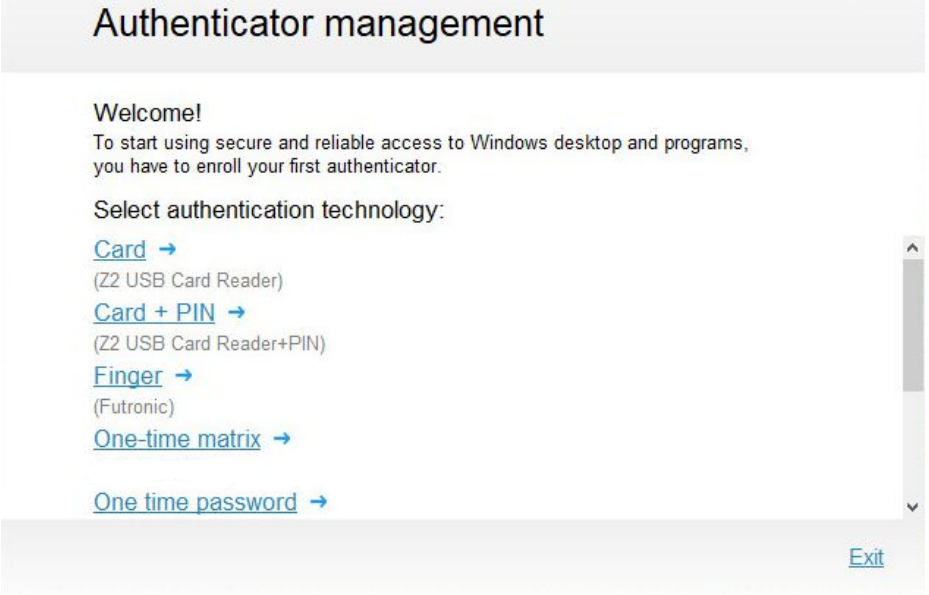
You can register an authenticator at any moment.
- To continue with authenticator registration, select one of the authentication methods available in the Authenticator management window.
- To log in to the operating system without authenticator registration, click Exit. In this case, the First Login Wizard will appear at each system login until you register the first authenticator.
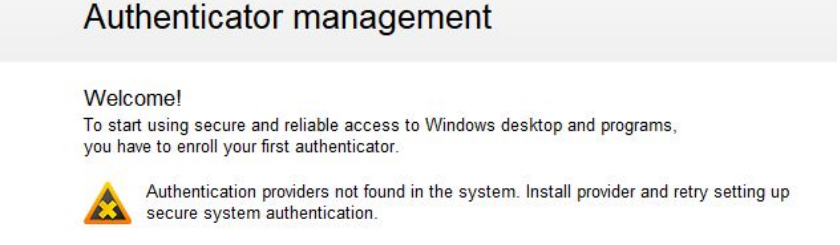
If the required Axidian Access providers are not found on the user workstation, authenticator registration is not possible.
If the following message appears, contact your system administrator.
The first authenticator registration
If users can use Axidian Access authentication technology, they are prompted to register the first authenticator after logging in to workstation with domain account password. Select the authentication method and follow the instructions of the Authenticator registration wizard. The wizard scenario depends on the selected authentication method.
In the Authenticator management window, follow the instructions of the wizard.
To return to the previous page and select another authentication method, click Back.
After you complete all the required settings, the Authenticator management window shows the message: New authenticator has been successfully enrolled.
If allowed by the system administrator, you can add an arbitrary text comment to the registered authenticator.
To complete the authenticator registration, click Save. The registered authenticator is displayed in the Authenticator management window.
If the user account is allowed to have several authenticators, click Add login method to continue the registration. You can also modify, verify or remove a registered authenticator if allowed by the system administrator.
The login with a registered authenticator is available within your next login attempt.
When using certain models of biometric authentication devices (such as Digent IZZIX FD 2000, FD/FM 1000 fingerprint scanners), you can encounter errors during registration and recognition of authenticators. These errors may occur because of scanner sensitivity level and individual features of human body (body temperature, skin wetness, finger provision method). To avoid such errors, we recommend that you verify the authenticator immediately after registration.
Random password
If random password generation is allowed for your account, the following message appears in the Authenticator management window after the registration of the first authenticator:
Random password has been automatically generated for your account. Old password has expired. For entering the domain use programmed authenticator.
Random password for your account is generated when your current password expires. If a random password is generated for your account, the next login is possible with the authenticator only. If authenticator caching is allowed for the user account, the authenticator must be stored in local cache upon the next login to operating system. In this case it is possible to log in with cached authenticator even if Axidian Access servers are unavailable.
Login with an authenticator
This login method is only available if you are a licensed Axidian Access user and authenticator registration is permitted for your account. Also, you must have at least one registered authenticator.
To log in to the operating system with an authenticator, perform the following steps:
After the operating system is loaded, switch to the screen where you select the user account. Select your account. If you need to log in with another account, click Other user.
The opened Windows Logon window displays the last username used to log in, as well as the authentication method used.
If you want to change the user account name, click Cancel, then select the account.
If you want to change the login method, click Switch authentication method and select the methods that corresponds to the registered authenticator.
To log in to the operating system, provide a registered authenticator. The instructions in the authentication window depend on the selected authenticator. Perform the required actions.
If the system administrator configured mandatory password change and random password generation is allowed, then a random password is generated automatically when logging in to the system. The following notification of successful automatic change of password appears: Your password has been automatically changed.
If the user domain password was reset by the system administrator and the user has at least one authenticator registered, then a warning appears when you log in to the system. In this case a user must enter and confirm a new domain password.
If a user is required to change a password when all Axidian Access servers are unavailable (but at least one domain controller is available), the notification also appears when entering the new password. It happens because the new password set by a user cannot be synchronized with the Axidian Access data storage. In this case the new domain password must be synchronized with the Axidian Access data storage during the next login with an authenticator when at least one of the Axidian Access servers are available. After the password is successfully synchronized, you can successfully log in.
Automatic identification
If automatic identification is configured on the Axidian Access Core Server and at your workstation, you do not have to select a user account when logging in. Select Automatic identification place the registered authenticator to the reader device.
Automatic user identification is supported only by the Z2USB and OMNIKEY providers. To use automatic identification, register an authenticator after you configure the automatic identification at all Axidian Access servers and user workstations.
Use automatic identification in combination with the automatic stop of the user session, if other users use their authenticators.
Access to remote desktop with an authenticator
Access to remote desktop with an authenticator requires:
- Standard Windows mstsc.exe utility (Remote Desktop Connection) at the terminal client.
- Windows® Logon installed at the terminal server.
- Axidian Access provider that corresponds to the authentication technology used, installed at the terminal client and at the terminal server.
- Hardware authentication device connected to the terminal client (not required for OTM Provider, Google Authenticator Provider, Passcode Provider).
To access a remote desktop with an authenticator, perform the following steps:
- Run Remote Desktop Connection.
- Enter the name or address of the terminal server and establish connection to it.
- In the Windows Logon window that appears select your account and login method (authenticator type) and perform the authentication.
If random password was not generated for your account, you can access a remote desktop with a password.
Login with no network connection
You can log in with an authenticator even if there is no physical connection to the network. To log in with cached authenticator and no network connection, perform the same steps as you do in the situation when network connection is available.
This login method is available if:
- Authenticator caching is permitted for your account.
- Authenticator caching has been performed upon the first system login with authenticator.
The login can be performed with cached authenticator and network connection available.
System administrator can limit cached authenticator validity period. By default, the expiration date of cached authenticators is 10 days, counted from the date of the last login, regardless of whether another login happens during this period.
For example, if the expiration date is set to 10 days and the login is performed at 10:00 AM on April 12, 2025, the cached authenticators are valid from 10:00 AM on April 12, 2010, to 10:00 AM on April 22, 2025.
If authenticator caching is allowed for your account, contact your system administrator to find out whether any constraints are imposed. If validity period of the cached authenticators expires and the Axidian Access servers are not available, the following error message appears when you try to log in: Login error. Server not found. User data caching not permitted.
Axidian Access Paste
When a password is required to access an application, use the Axidian Access Paste function to stay as secure as possible. The Axidian Access Paste allows you to automatically paste the hidden password to the input field when pressing the hotkey combination ([Ctrl] [Alt] [V], by default).
To enable or disable Axidian Access Paste function, use the Axidian Access Paste Tray application. Click the  icon in the Windows notification bar and select the required context menu item:
- Enable Axidian Access Paste: The activation of the function, enabled by default.
- Run at startup: Run the Axidian Access Paste Tray application when Windows starts, enabled by default.
- Exit: Exit the application.
To use the Axidian Access Paste function, perform the following steps:
- Place the cursor in the password input field of the target application.
- Press the hotkey combination.
- The Authentication window appears. Confirm your identity with any method available (Authenticator/Password).
After successful authentication, the password appears in the input field.
Run as administrator
The following option is supported for Microsoft Windows Vista operating system and later versions.
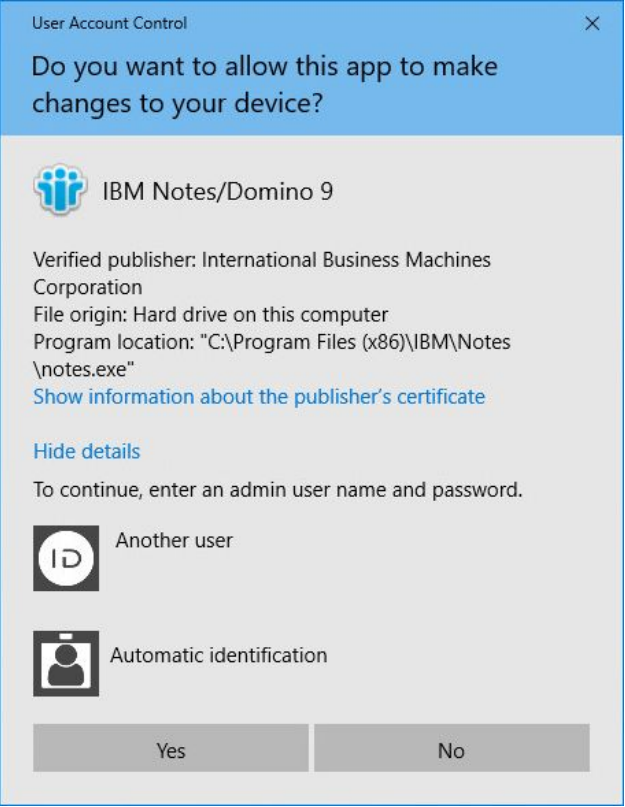
The Run as administrator standard command includes the authentication request using Axidian Access technology. When you run this command, the user account selection window appears, followed by the Authentication window of the Axidian Access system. The user account selection window may vary depending on the operating system version. The following example shows this window for Windows 10.