RDP Windows Logon
With RDP Windows Logon you can implement two-factor authentication with Axidian Access technology when connecting through RDP or Remote App. As the second factor, you can use master password (Passcode Provider), one-time password, generated by mobile application (Software OTP Provider) or the one sent via SMS or email.
The installation files of RDP Windows Logon are located at RDP Windows Logon\<Version number>\.
- RDPWindowsLogon-x64.msi: The installation package of RDP Windows Logon for 64-bit operating systems.
- RDPWindowsLogon-x86.msi: The installation package of RDP Windows Logon for 32-bit operating systems.
Installation and configuration of RDP Windows Logon
To install RDP Windows Logon, run the installer corresponding to your system bitness.
Run Windows Registry Editor.
In the HKEY_LOCAL_MACHINE\SOFTWARE\ section, create Axidian-ID key with nested RemoteAuth key.
In the RemoteAuth key, create the following parameters:
- ProviderId (string parameter): Set it to the value of the provider used.
Supported providers
SMS OTP: {EBB6F3FA-A400-45F4-853A-D517D89AC2A3}
EMAIL OTP: {093F612B-727E-44E7-9C95-095F07CBB94B}
Passcode: {F696F05D-5466-42b4-BF52-21BEE1CB9529}
Software OTP: {0FA7FDB4-3652-4B55-B0C0-469A1E9D31F0}
HOTP Provider: {AD3FBA95-AE99-4773-93A3-6530A29C7556}
TOTP Provider: {CEB3FEAF-86ED-4A5A-BD3F-6A7B6E60CA05}
Axidian Key Provider: {DEEF0CB8-AD2F-4B89-964A-B6C7ECA80C68}
- LSEventCacheDirectory (string parameter): Specify the path to local cache storage folder.
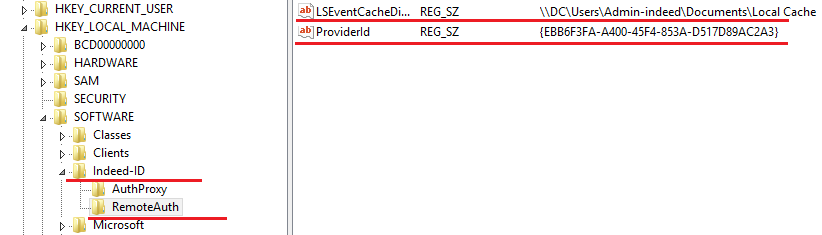
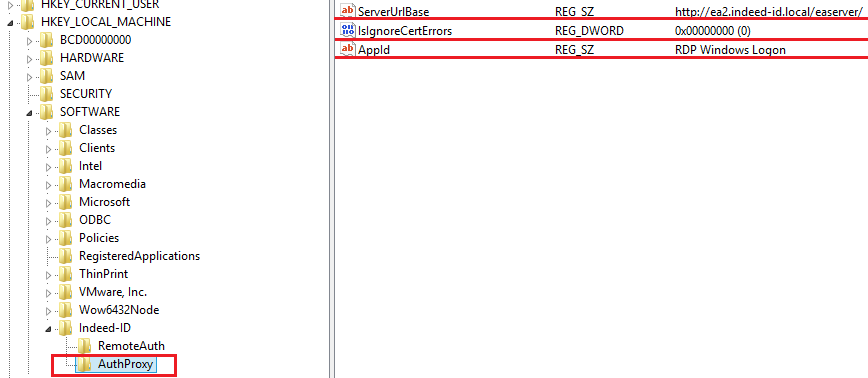
In HKEY_LOCAL_MACHINE\SOFTWARE\Axidian-ID\AuthProxy section, modify the following parameters:
ServerUrlBase: Defines the URL of your Axidian Access Core Server.
IsIgnoreCertErrors: Values
0or1.
infoThis parameter is intended to verify the Axidian Access Core Server certificate. Set the
1value to ignore certificate errors.- AppId: RDP Windows Logon.
To configure the authentication providers at a user side, perform the following steps:
- In the HKEY_LOCAL_MACHINE\SOFTWARE\Axidian-ID\RemoteAuth section of Windows registry, create the DWORD parameter named IsAuthSelectionEnabled.
- Set the IsAuthSelectionEnabled parameter to
1. If the parameter is not defined or its value is set to0, then users cannot select authentication providers. In this case, the provider defined by ProviderId parameter is used, or Passcode Provider, if ProviderId is not defined. If IsAuthSelectionEnabled=1 and ProviderId parameter is specified, then this provider is selected upon the user connection, but the latter can select any other one from the list of supported providers.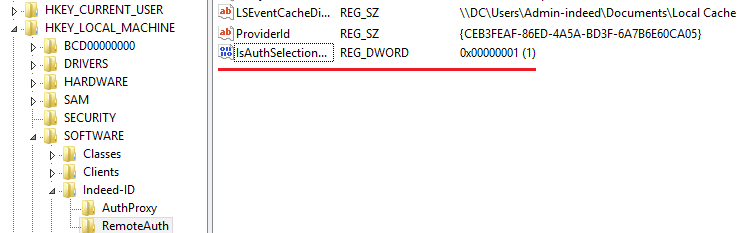
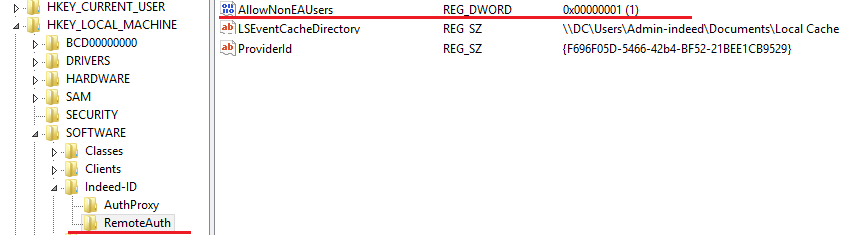
Optionally, you can enable authentication for users without the Axidian Access license. By default, RDP Windows Logon works with users who have licenses for RDP Windows Logon. To enable authentication for users without license for RDP Windows Logon, perform the following steps:
- Run Windows Registry Editor.
- In the HKEY_LOCAL_MACHINE\SOFTWARE\Axidian-ID\RemoteAuth section of Windows registry, create the DWORD parameter named AllowNonEAUsers.
- If AllowNonEAUsers = 1, then the users with no RDP WL license can authenticate with domain password (Axidian Access technology is not used).
- If AllowNonEAUsers parameter value is 0 or not defined, then authentication is performed only for users with RDP WL license. Authentication of users with no license is not possible in this case.
Example of RDP Windows Logon operation
- Connect to a PC with RDP Windows Logon installed.
- Specify the username and domain password, then click Ок.
- Enter one-time password.