IIS Extension
The IIS Extension module makes it possible to add the second user authentication factor for web applications that use Forms Authentication and are deployed at Microsoft Internet Information Services (IIS) platform with Axidian Access authentication technology.
Files for the IIS Extension installation are located at IIS Extension\<Version number>\.
- IIS.Extension-v1.2.7.x64.msi: The installation package of IIS Extension.
- Misc/Server2008/Axidian.AdminConsole.IIS.Install.MSServer2008.ps1: The script to install the required components of IIS server for Windows Server.
- Misc/Server2008/NDP452-KB2901907-x86-x64-AllOS-ENU.exe: The Microsoft .NET Framework 4.5.2 update package for Windows Server.
- Misc/Server2012/AccessControlInitialConfig/Axidian.AdminConsole.IIS.Install.MSServer2012.ps1: The script to install the required IIS server components for Windows Server.
Installation and configuration of IIS Extension
IIS Extension allows you to configure two-factor authentication to provide access to remote desktops and applications through web using the Microsoft Remote Desktop Web Access (RD Web Access) service.
Two-factor authentication is supported only for applications that use Forms Authentication.
Two-factor authentication is implemented through authentication with domain password and with one-time password as the second factor.
To install IIS Extension, run IIS.Extension-v1.2.7.x64.msi.
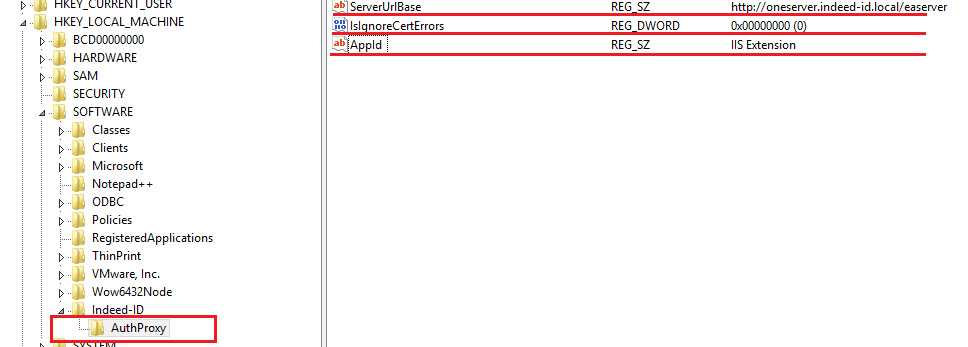
In the HKEY_LOCAL_MACHINE\SOFTWARE\Axidian-ID\AuthProxy section, modify the following parameters:
- ServerUrlBase: The URL of Axidian Access Core Server.
noteDo not use the
/character at the end of URL in application settings.IsIgnoreCertErrors: The parameter value is
0. This parameter is intended to verify the Axidian Access Core Server certificate. Use the 1 value to ignore certificate errors.AppId: IIS Extension. This parameter defines the name of the component used.
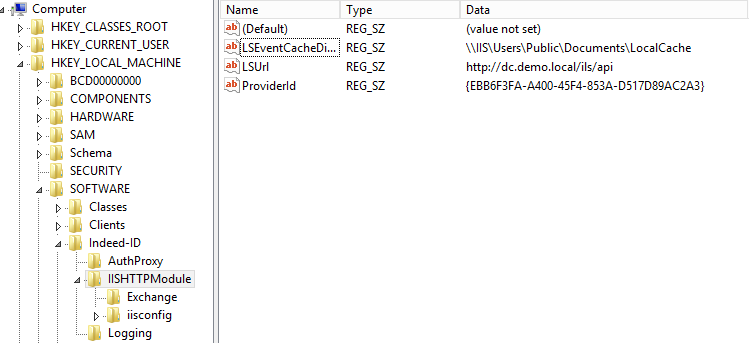
In HKEY_LOCAL_MACHINE\SOFTWARE\Axidian-ID section, create a key named
IISHTTPModule. In this key, create the following parameters:- LSUrl string parameter. This parameter defines the URL of your log server.
noteDo not use the
/character at the end of URL in application settings.LSEventCacheDirectory string parameter. Specify the path to the local cache storage folder.
ProviderId string parameter. Specify ID of the provider used for authentication.
Supported providers
SMS OTP: {EBB6F3FA-A400-45F4-853A-D517D89AC2A3}
EMAIL OTP: {093F612B-727E-44E7-9C95-095F07CBB94B}
Passcode: {F696F05D-5466-42b4-BF52-21BEE1CB9529}
Software OTP: {0FA7FDB4-3652-4B55-B0C0-469A1E9D31F0}
HOTP Provider: {AD3FBA95-AE99-4773-93A3-6530A29C7556}
TOTP Provider: {CEB3FEAF-86ED-4A5A-BD3F-6A7B6E60CA05}
Axidian Key Provider: {DEEF0CB8-AD2F-4B89-964A-B6C7ECA80C68}
IIS configuration
In this section, Exchange 2016 is used as the example.
- In IIS Manager, open the application (owa for Outlook Web Access) that will use IIS Extension and switch to the Modules section.
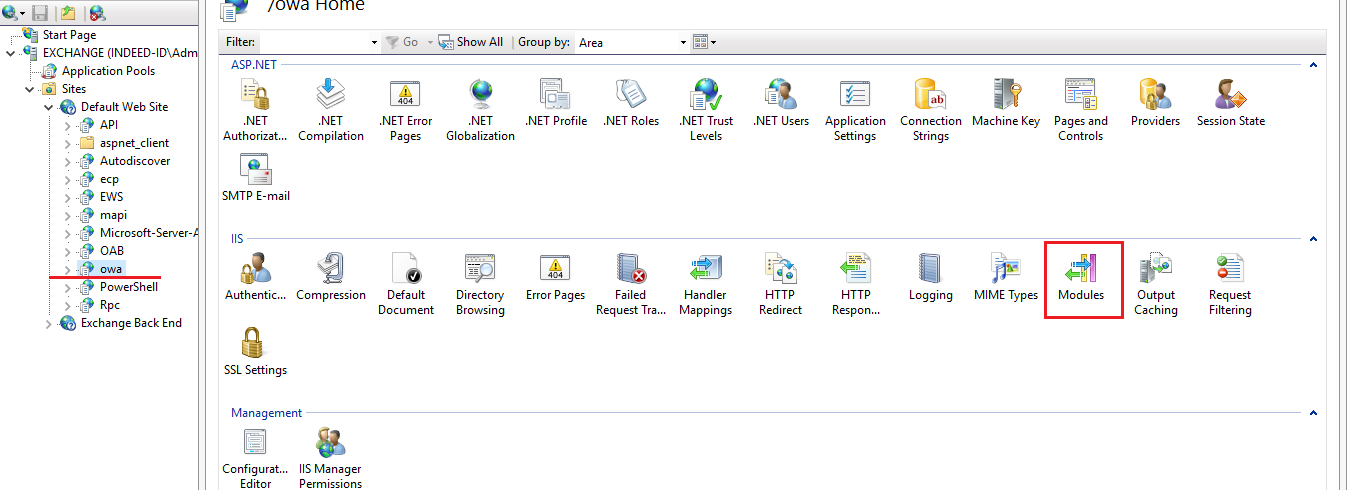
- In Actions menu, click Configure Native Modules…, activate Axidian Access modules and click Ok.
Component configuration
Configure two-factor authentication separately for each target application. Create a key with the name of the application or the IIS site in the HKEY_LOCAL_MACHINE\SOFTWARE\Axidian-ID\IISHTTPModule section of Windows registry. Then create the following parameters in the key and define their values:
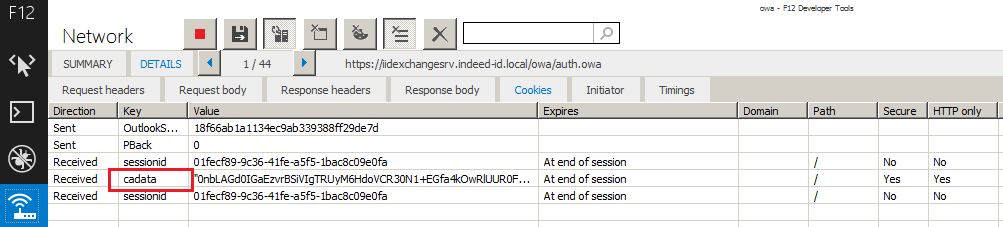
AuthCookie (string parameter): Defines the name of cookie that is used for authentication in the target application. This is defined experimentally for each application. The parameter value can be obtained in F12 IE Developer Toolbar. To do so, perform the following steps:
- Run Enable network traffic capturing in the Network section.
- Perform authentication in the application.
- Switch to the Cookie tab of the Details section.
- The value is specified in the Key column.
sMFAEnabled (DWORD parameter): Enables two-factor authentication.
LoginURL (string parameter): This is relative URL, to which the data is transmitted from the application login form using the POST method. The parameter value must start with the
/character. The URL is defined relatively to the target site.MatchTargetRedirect (DWORD parameter): If the value is
1, the page to enter the second authentication factor is displayed before the main page. The target page is not saved in the buffer. After the second factor is entered, redirect to the main page is performed (TargetURL parameter).OTPURL (string parameter): Alternate URL to send the data of the Axidian Access authentication form for the second factor to. By default, the data is sent to the same URL as the form data of the target application. The IIS module intercepts this data and either replaces it with original one if Axidian Access authentication is successful or does not, if Axidian Access authentication is unsuccessful and target application displays authentication error. The value should be used if the target application does not consider Axidian Access form data as incorrect for authentication. Or it is necessary to display authentication errors explicitly to the Axidian Access user. Thus, the value can be left blank.
PasswordField (string parameter): The value of name attribute for password field of the application login form.
RedirectToTarget (DWORD parameter): Redirect to the target page.
TargetURL (string parameter): The URL of the target page, where the user is redirected to after authentication in the application.
For Exchange 2013 and 2016, specify /owa (without the end / character). For Exchange 2010, specify /owa/ (with / character at the end).
- UsernameField (string parameter): The value of name attribute for username field of the application login form.
The values of LoginURL, PasswordField, UsernameField parameters are located in the authentication form of the target application.
You can get these values with Internet Explorer F12 Developer Tools.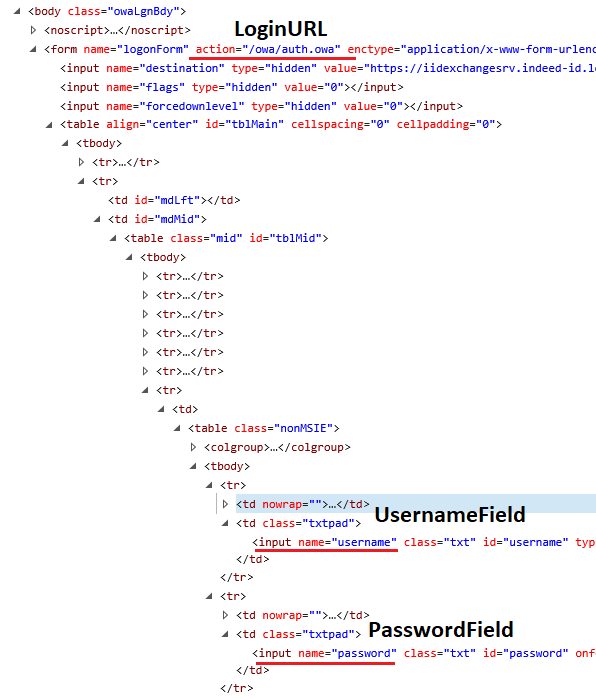
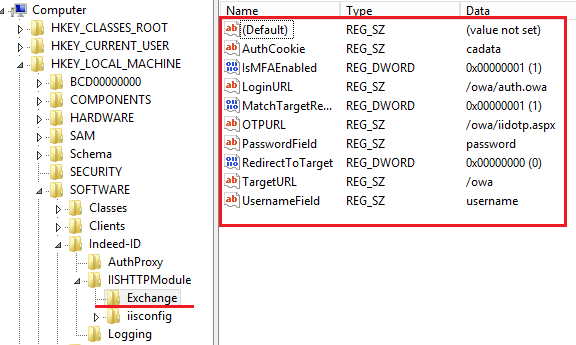
It is necessary to deactivate Basic authentication for OWA application in the registry. In the HKEY_LOCAL_MACHINE\SOFTWARE\Axidian-ID\IISHTTPModule\IISConfig\owa section, create a DWORD parameter named IsBasicDisabled
with the value of 1.
Example of the IIS Extension operation
IIS Extension does not support logging in to OWA with User name only.
- Open the OWA application and enter domain username and password.
- If entered correctly, the second factor prompt window appears.
- If entered correctly, the application opens.