ADFS Extension (2016)
With ADFS Extension, you can use multi-factor authentication for Microsoft ADFS server, thus adding the second factor to the access gaining process.
Files for the ADFS Extension installation are located at ADFS Extension\<Version number>\.
ADFS.Extension-x64.msi: Installation package for ADFS Extension.
Installation and configuration of ADFS Extension
Run the ADFS.Extension-x64.msi installer to install ADFS Extension.
Create a configuration file named MFAAdapter.json with the following parameters.
infoSMS OTP: {EBB6F3FA-A400-45F4-853A-D517D89AC2A3}
EMAIL OTP: {093F612B-727E-44E7-9C95-095F07CBB94B}
Passcode: {F696F05D-5466-42b4-BF52-21BEE1CB9529}
Software OTP: {0FA7FDB4-3652-4B55-B0C0-469A1E9D31F0}
HOTP Provider: {AD3FBA95-AE99-4773-93A3-6530A29C7556}
TOTP Provider{CEB3FEAF-86ED-4A5A-BD3F-6A7B6E60CA05}
Axidian Key Provider: {DEEF0CB8-AD2F-4B89-964A-B6C7ECA80C68}
Example
{
"ServerType":"eaNet",
"EANetServerURL":"http://YourDomainName/am/core/",
"ModeId":"{0FA7FDB4-3652-4B55-B0C0-469A1E9D31F0}",
"LSEventCacheDirectory": "C:\\EventCacheEa\\"
}
Run PowerShell as administrator. Enter the following information to register an adapter:
YourPatch\MFAAdapter.json: Specify the full path to the previously created configuration file.
Specify the version number of ADFS Extension used in the
$typeNamevariable,Versionparameter.Example
$typeName = "Axidian.ADFS.MFAAdapter.MFAAdapter, Axidian.ADFS.MFAAdapter, Version=1.0.6.0, Culture=neutral, PublicKeyToken=1ebb0d9282100d91"
Register-AdfsAuthenticationProvider -TypeName $typeName -Name "MFA Adapter" -ConfigurationFilePath 'YourPatch\MFAAdapter.json'
To remove an adapter, run the following command:
Example
Unregister-AdfsAuthenticationProvider -Name "MFA Adapter"To update the configuration, run the following command:
Example
Import-AdfsAuthenticationProviderConfigurationData -Name "MFA Adapter" -FilePath 'YourPatch\MFAAdapter.json'
Activation of multi-factor authentication for ADFS
Open the AD FS management console.
Select Authentication Methods and in the Actions window, select Edit Multi-factor Authentication.
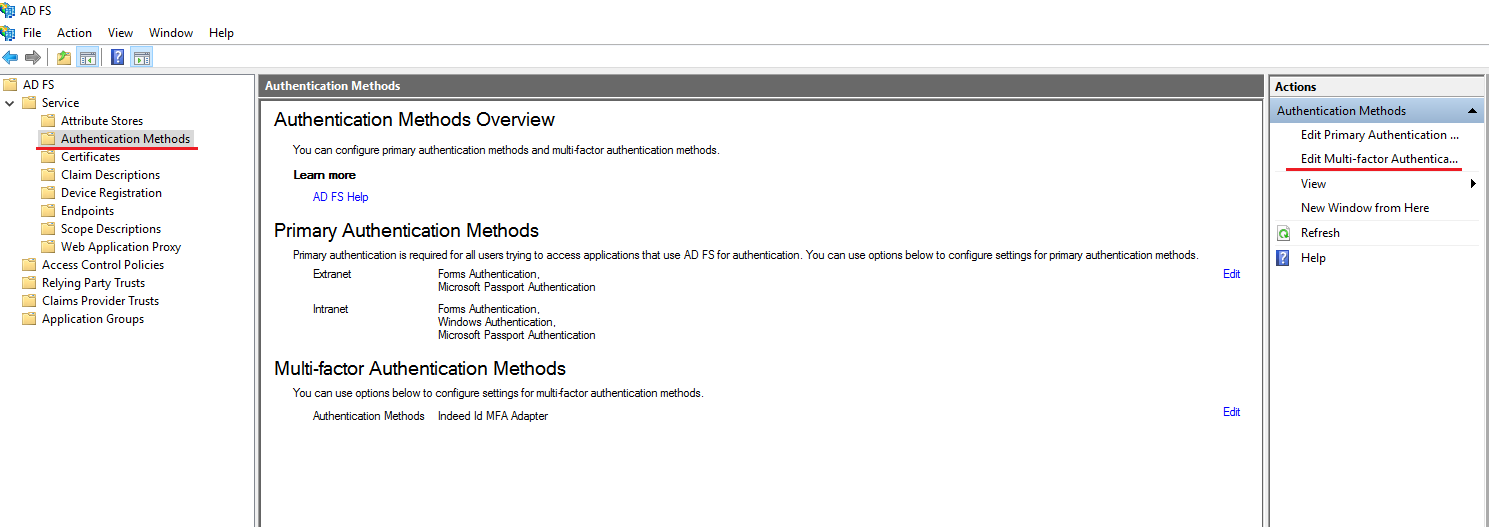
On the Multi-factor tab, select the previously created provider and click Apply.
Select Relying Party Trusts and click Add Relying Party Trust.
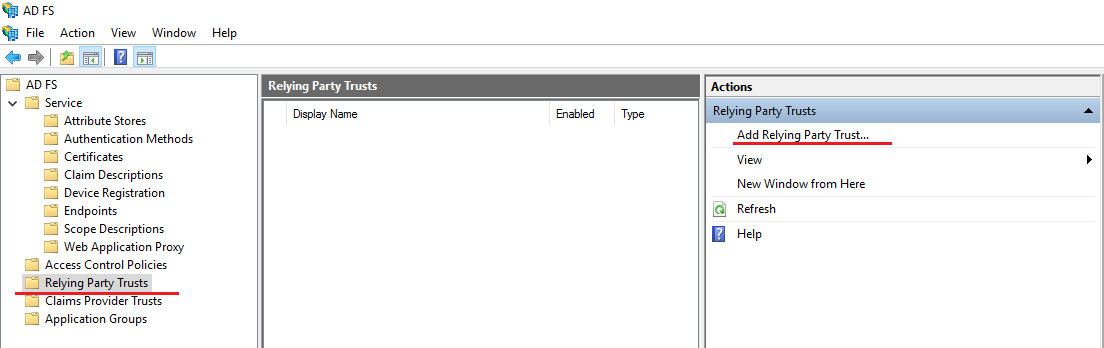
On the Welcome tab, select Supporting Claims and click Run.
On the Select Data Source tab, specify the URL of your server and click Next.
infoThis page uses metadata address, such as https://<dns_name>/federationmetadata/2007-06/federationmetadata.xml.
On the Displayed name tab, enter the name and description for your relying party trust and click Next.
In the list of default values Choose Access Control Policy, select the corresponding policy with the MFA request. Also, you can add any access control policy.
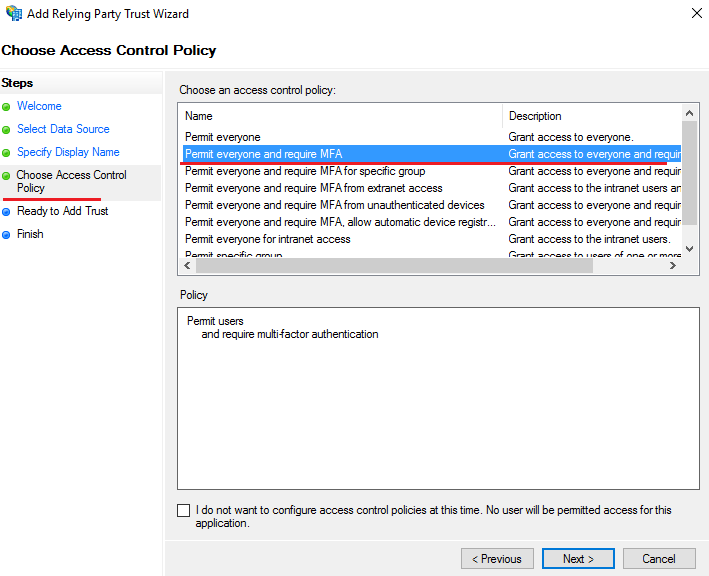
Leave the rest parameters with the default values.
Restart the AD FS service to apply the changes.
Example of extension operation
The idpinitiatedsignon.htm page is deactivated in AD FS 2016 by default. To activate it, run PowerShell as administrator and run the following command:
Set-AdfsProperties -EnableIdpInitiatedSignonPage $True
- Open the ADFS test page: https://YourDomainName/adfs/ls/idpinitiatedsignon.htm
- Perform logging in.
- After you enter the username and password, specify the second factor information.
- If all data is correct, the login is successful.